

Webex in Canvas

Enable Webex in Canvas Navigation
Adding Webex to your course navigation allows instructors and students to quickly access and manage Webex meetings directly within Canvas.
Steps
-
Log into Canvas and open the course where you would like to enable Webex.
-
In the course navigation menu, click Settings.
-
Open the Navigation tab at the top of the page.
-
Scroll down to the list of disabled navigation items and locate Webex.
-
Enable Webex by either:
-
dragging Webex from the disabled section into the active navigation section, or
-
clicking the three dots next to Webex and selecting Enable.
-
-
Scroll to the bottom of the page and click Save.
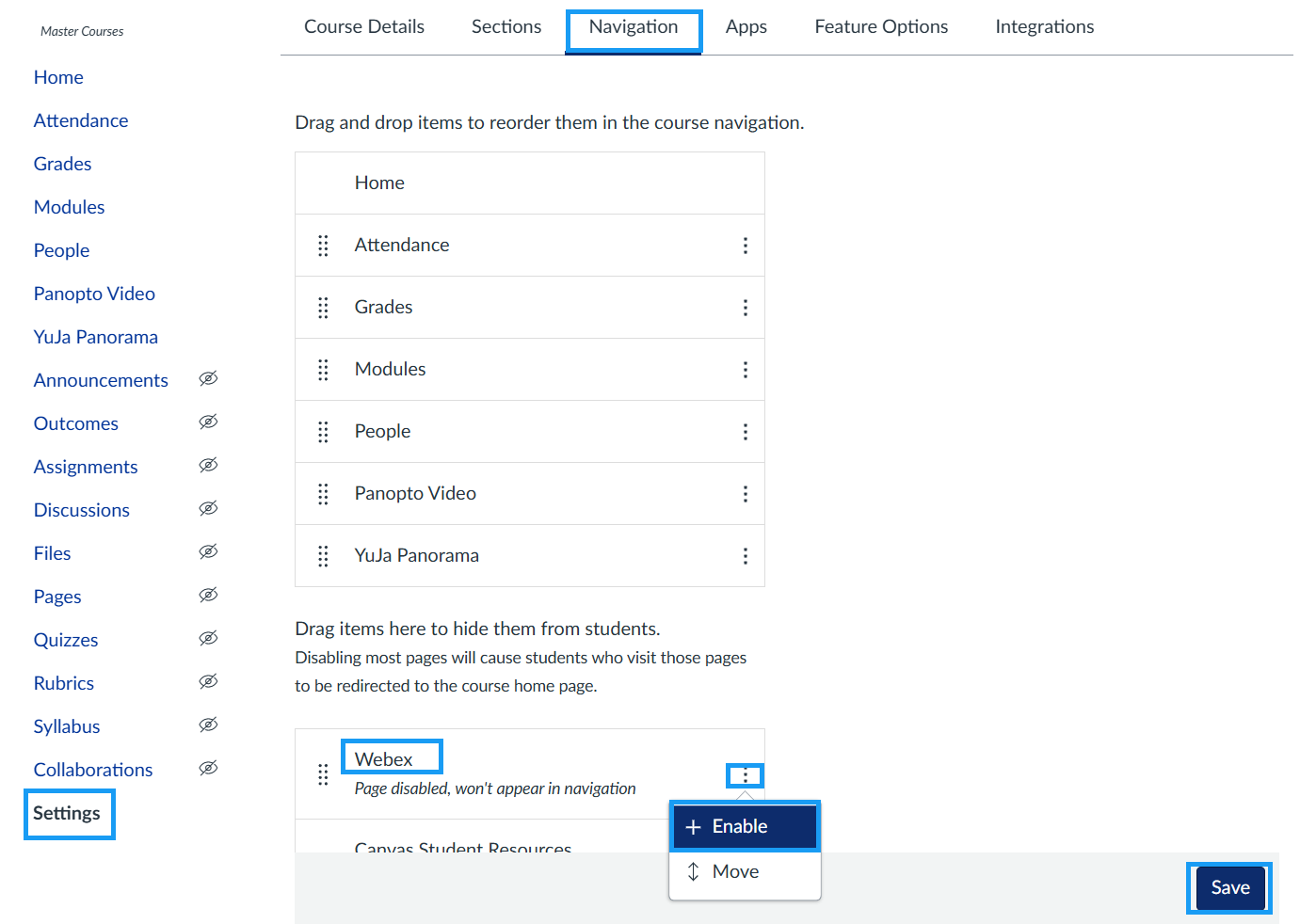
After saving, Webex will appear in the course navigation menu for both instructors and students.
Access Webex Meetings Through Canvas Navigation
If you create Webex meetings through the Canvas Webex integration, students can access meetings directly through the Webex link in the course navigation menu.
Steps
-
Open the Canvas course.
-
Click Webex in the course navigation menu.
-
Schedule or locate your Webex meeting. You are able to edit, delete, or start a meeting.
-
Students can access the meeting by selecting the Webex link within the course navigation menu.
Add an External Webex Link to a Module
If you created your Webex meeting outside of Canvas or would like students to access the meeting directly from a Module, you can add the meeting link as an External URL.
Steps
-
Create or locate your Webex meeting bys igning into Webex by visiting the MSU support page on Webex.
-
Copy the meeting link.
-
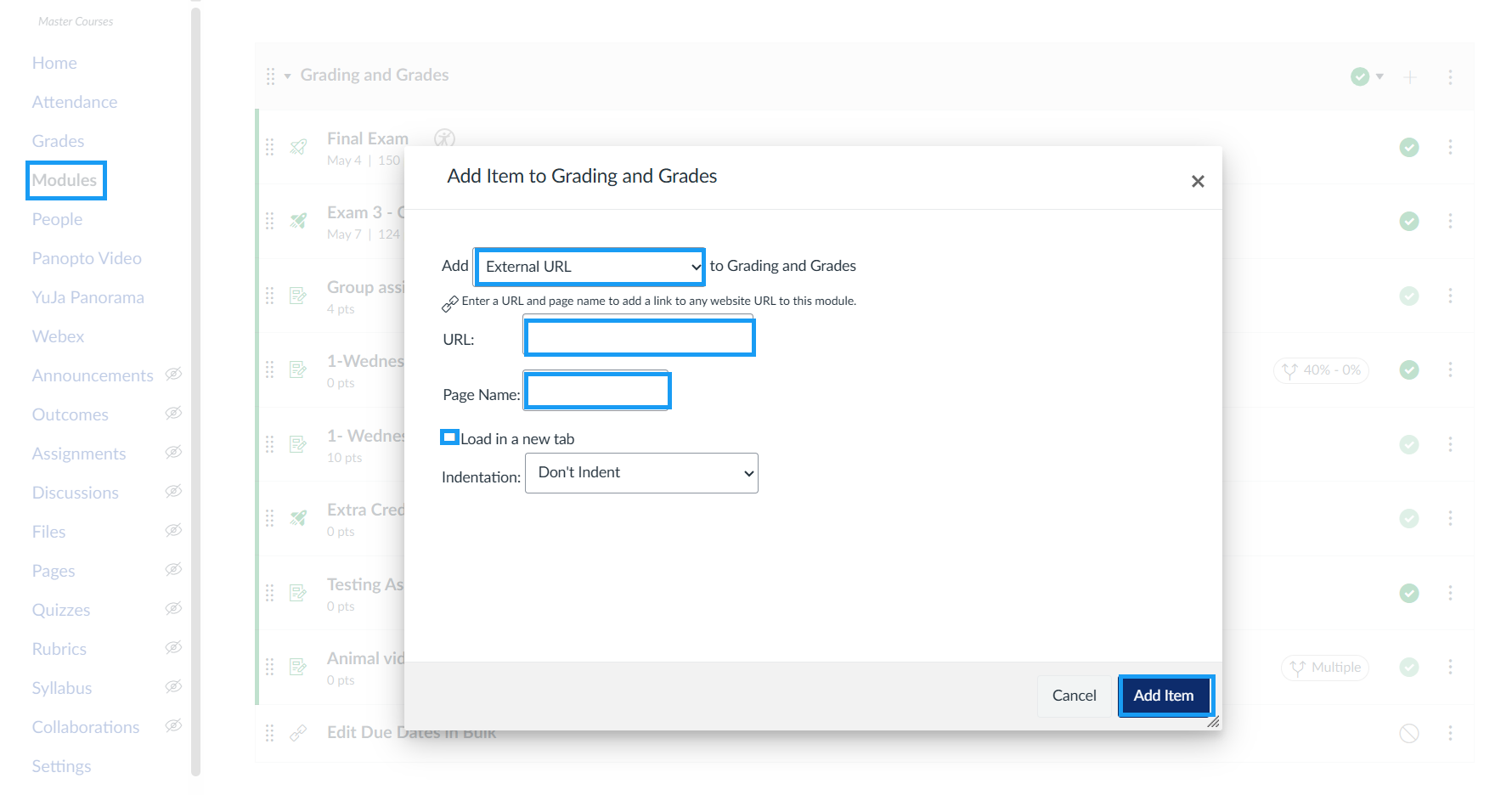
Open your Canvas course and navigate to Modules.
-
In the desired module, click the + button.
-
From the dropdown menu, select External URL.
-
Paste the meeting link into the URL field.
-
Enter a title in the Page Name field.
-
Optional: Select Load in a new tab if desired.
-
Click Add Item.
Add a Webex Link in the Rich Content Editor
You can add a Webex link anywhere the Rich Content Editor is available in Canvas, including Assignments, Discussions, Pages, Quizzes, and Announcements.
Steps
-
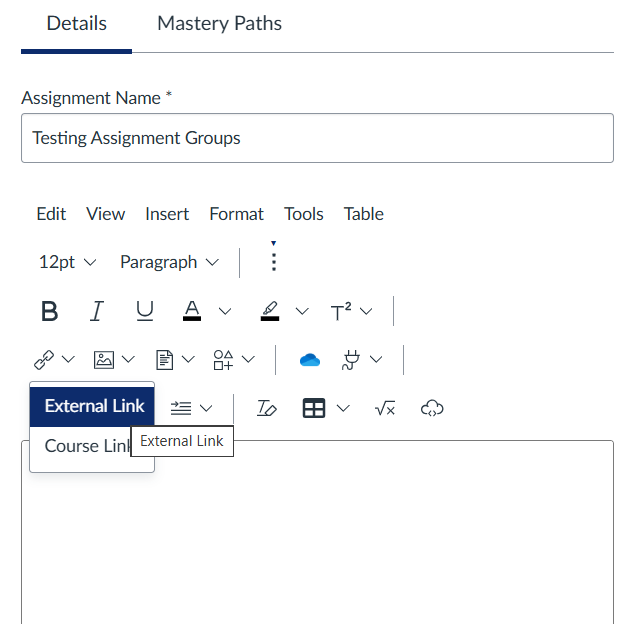
Navigate to the area in Canvas where you would like to add the Webex link.
-
Open the Rich Content Editor.
-
In an Assignment, click Edit.
-
In a Discussion, click Reply or + Discussion.
-
In an Announcement, click + Announcement.
-
In a Quiz, click Edit.
-
-
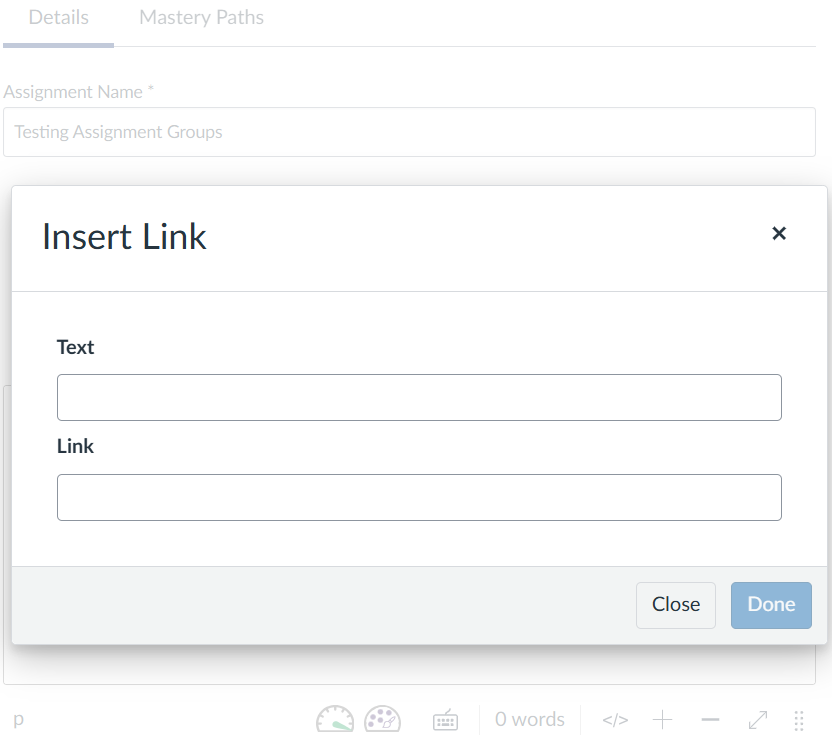
Type the text you would like students to click (example: Join the Webex Meeting).
-
Highlight the text.
-
Click the Link icon in the Rich Content Editor toolbar.
-
Paste the meeting link into the URL field.
-
Optional:
-
Select the gear icon to open the link in a new tab.
-
Add a title for the link.
-
-
Click Insert Link.
-
Click Save or Save & Publish to make the content visible to students.
Add a Webex Link Using the Canvas Calendar
You can also share a Webex meeting through the Canvas Calendar so students can quickly access scheduled sessions.
Steps
- Create a Webex meeting and copy the meeting link.
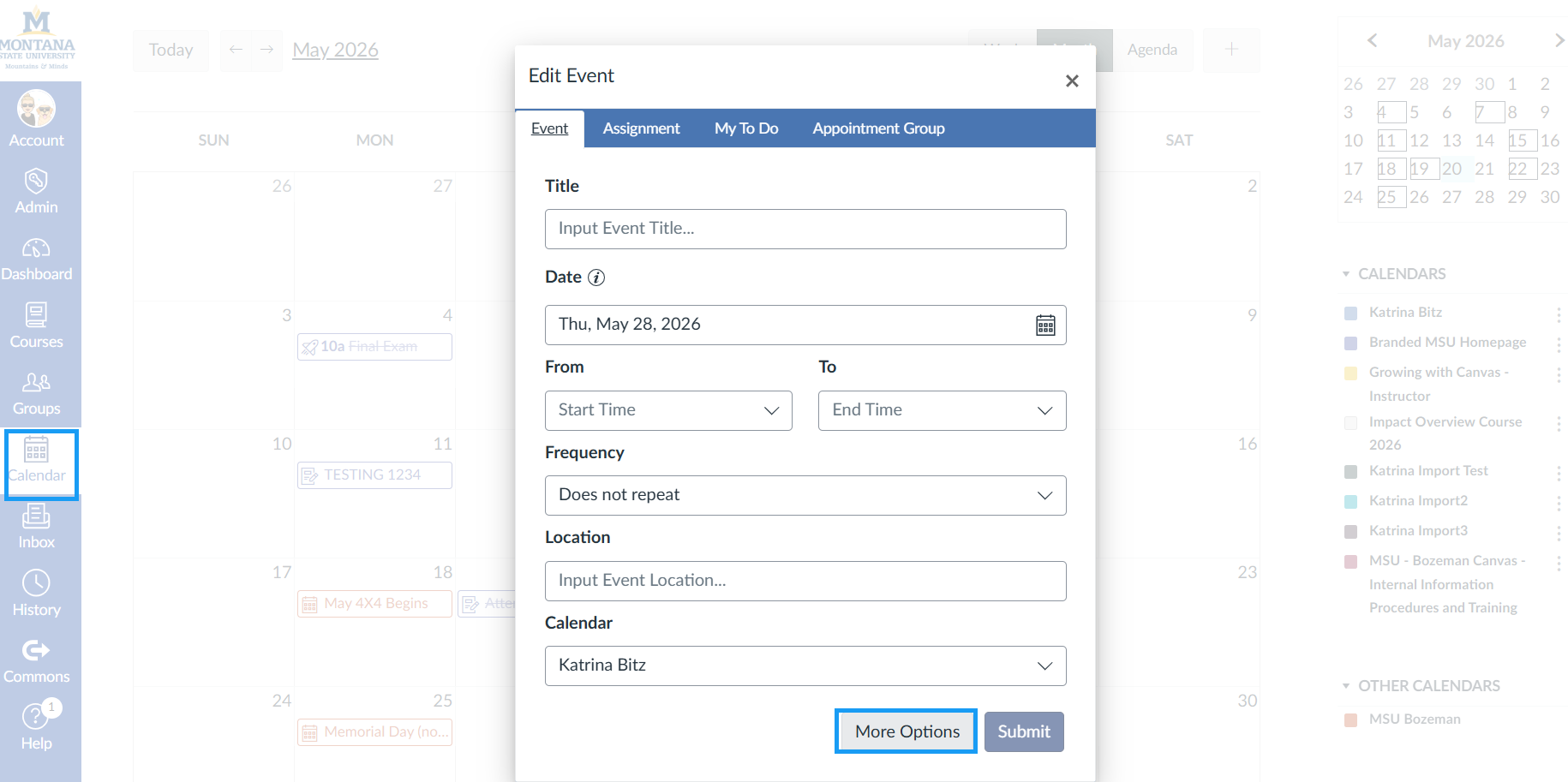
- Open the Calendar from the Canvas global navigation menu.
- Click the desired date and time for the event.
- Enter the basic event details in the pop-up window.
- Click More Options to open the full event editor.
- In the Rich Content Editor, enter text students can click to access the meeting (example: Join the Webex Meeting).
- Highlight the text and click the Link icon in the Rich Content Editor toolbar.
- Paste the meeting link into the URL field.
- Optional:
- Select the gear icon to open the link in a new tab.
- Add a title for the link.
- Click Insert Link.
- Set any remaining event details, including the date, time, and course calendar.
- Click Save.
Students will now be able to access the Webex meeting directly from the Canvas Calendar event.
Need Additional Help?
- For questions related to Webex accounts, licensing, audio/video issues, or Webex functionality, please contact UIT at 406-994-1777 or email helpdesk@montana.edu.
- For questions related to using Webex within Canvas, including course navigation, Modules, assignments, or Canvas integrations, please contact ATO at 406-994-3255 (option #2) or email ecat@montana.edu.