


MSSE Formatting Checklist
General Tips for Formatting Success
Please remember to use the downloaded desktop version of Microsoft Word for your capstone
paper.
Microsoft 365 is available for free to all MSSE students.
- Use the downloaded desktop version of Microsoft Word for your capstone paper.
- Microsoft 365 is available for free to all MSSE students.
- Download and use an MSSE master template.
- There are four versions of the master template, one for each capstone project option.
- The chapters and some of the headings in each of these documents are different because your paper content will vary based on the type of project you have chosen.
- Select the correct template to download below:
- Please note that many required elements of your paper are already formatted for you in these templates. Using one will ensure your paper complies with accessibility requirements.
- Select the Home tab in Microsoft Word
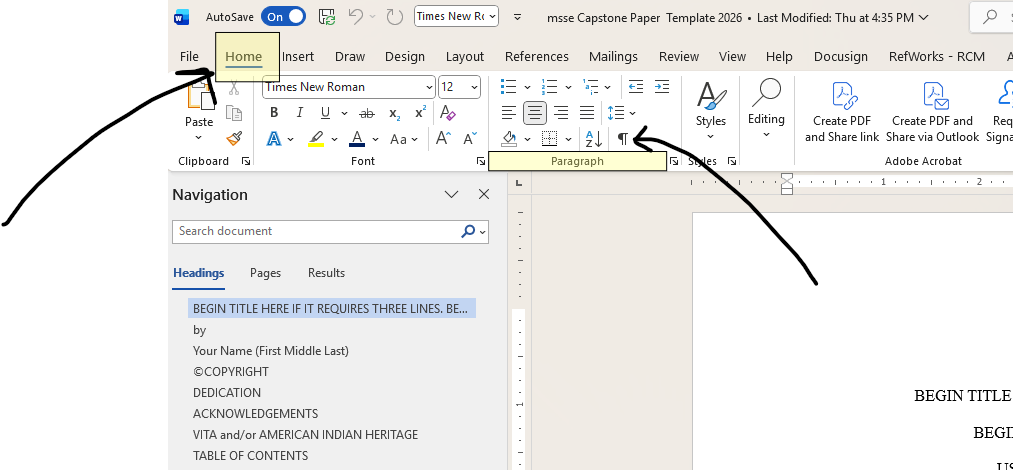
- Click on the paragraph symbol, which looks like this: 
- This will show you if you have any extra spaces where you shouldn't.
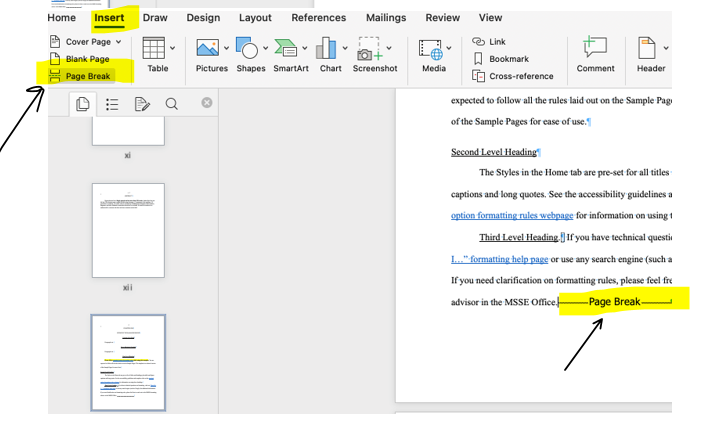
- It will also show you the location of section or page breaks.
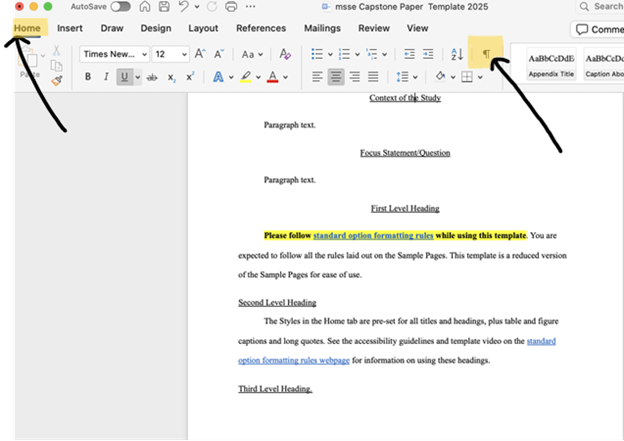
Note: The toolbar when using Microsoft Word on Mac computers looks slightly different, but the directions above remain the same. Here is a screenshot of where this symbol is in the toolbar when using a Mac computer:
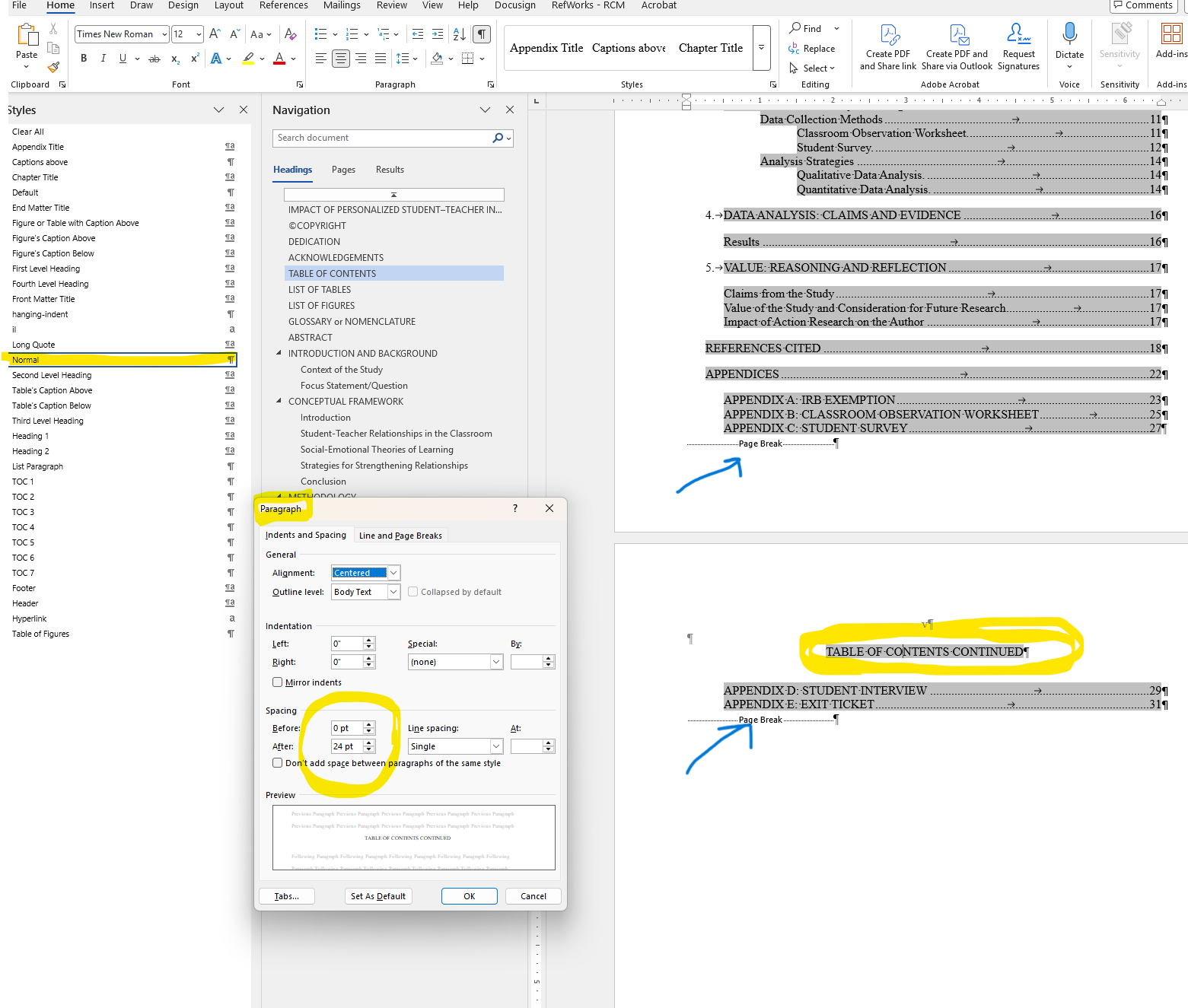
- Your front matter and end matter titles as well as your chapter titles are already formatted for you in the master template. So are certain headings. However, you will need to format additional first, second, and third level headings in the body of your paper and all table and figure captions yourself.
- Read directions on how to do this tailored to the type of computer you are using:
- Select your heading or caption text within your paper.
- Go to the Home tab. Find the Styles section of the toolbar.
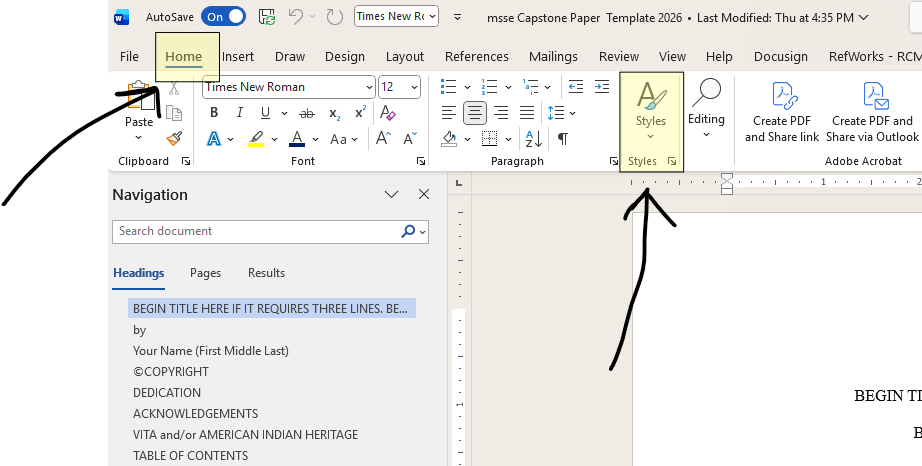
- There are two ways to access the Styles menu:
- Click on the Styles button where you see an A/paintbrush icon for a drop-down menu of style options. Once you select a style, this menu will disappear.
- Click in the bottom right of the Styles button and the same menu will appear at the left of your document. This menu will not disappear after you select a style unless you close it.
Screenshots showing what these two options look like:
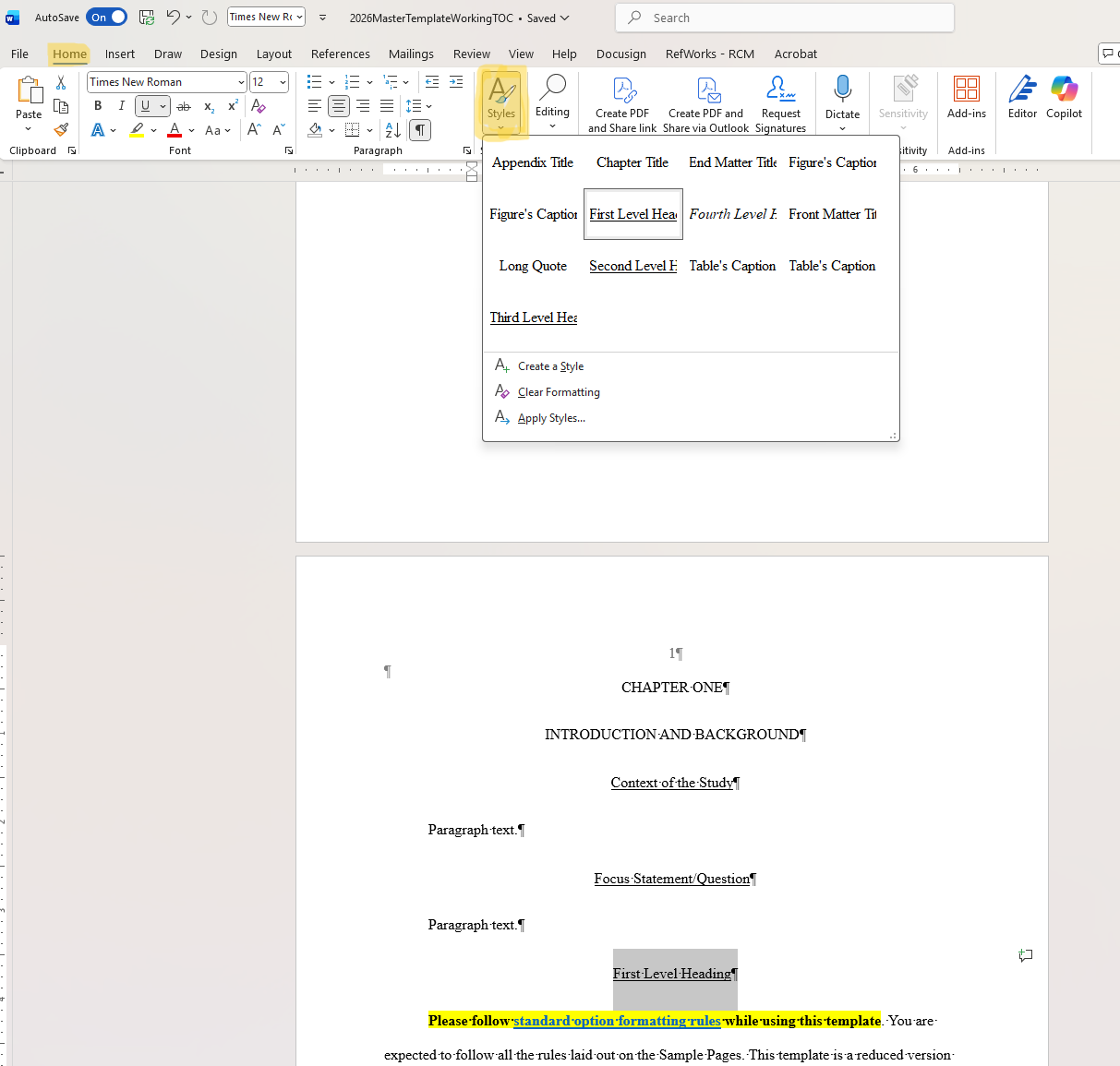
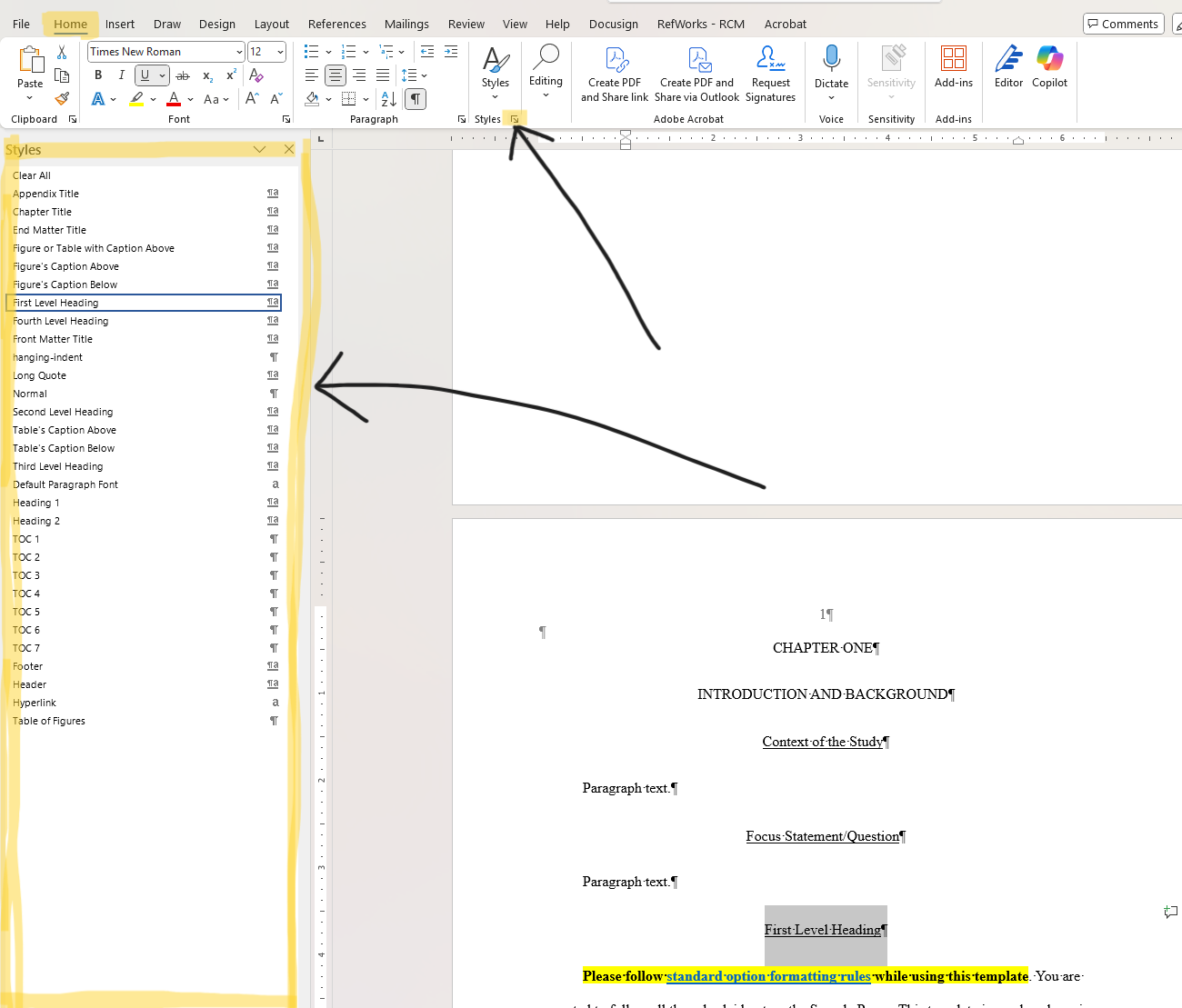
- From the styles menu, select the "First Level Heading" style for your first level headings, "Figure's Caption Below" style for captions below your figures, etc.
- Select your heading or caption text within your paper.
- Select the Home tab.
- There are two ways to access the Styles menu:
- Click on the Styles button to access a drop down menu. This will disappear after you select a style.
- Select the Styles Pane button directly next to the Styles button for a menu that appears at the right of your document. This menu will remain after you select a style until you close it.
Screenshots showing what these two menu options look like:
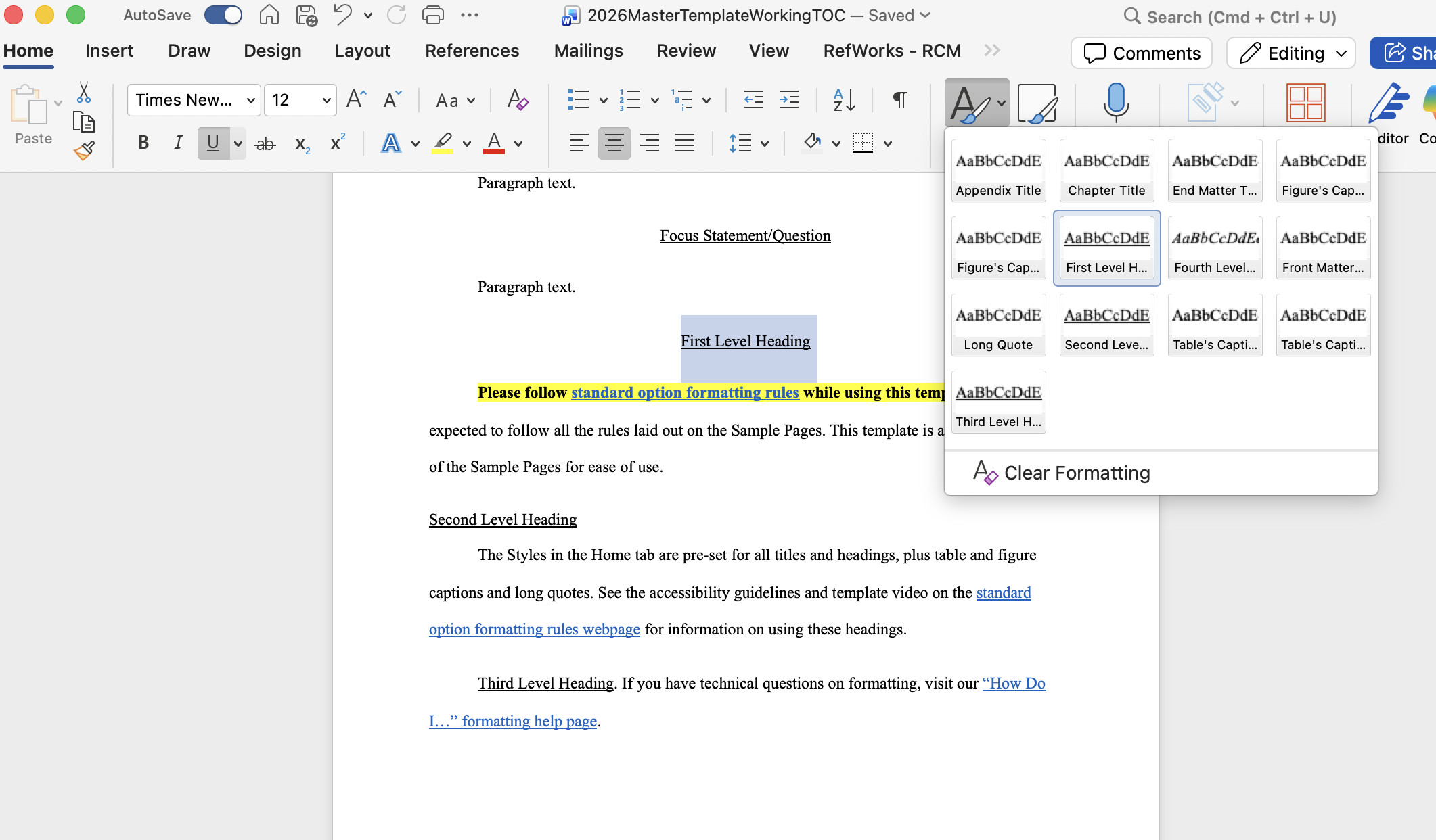
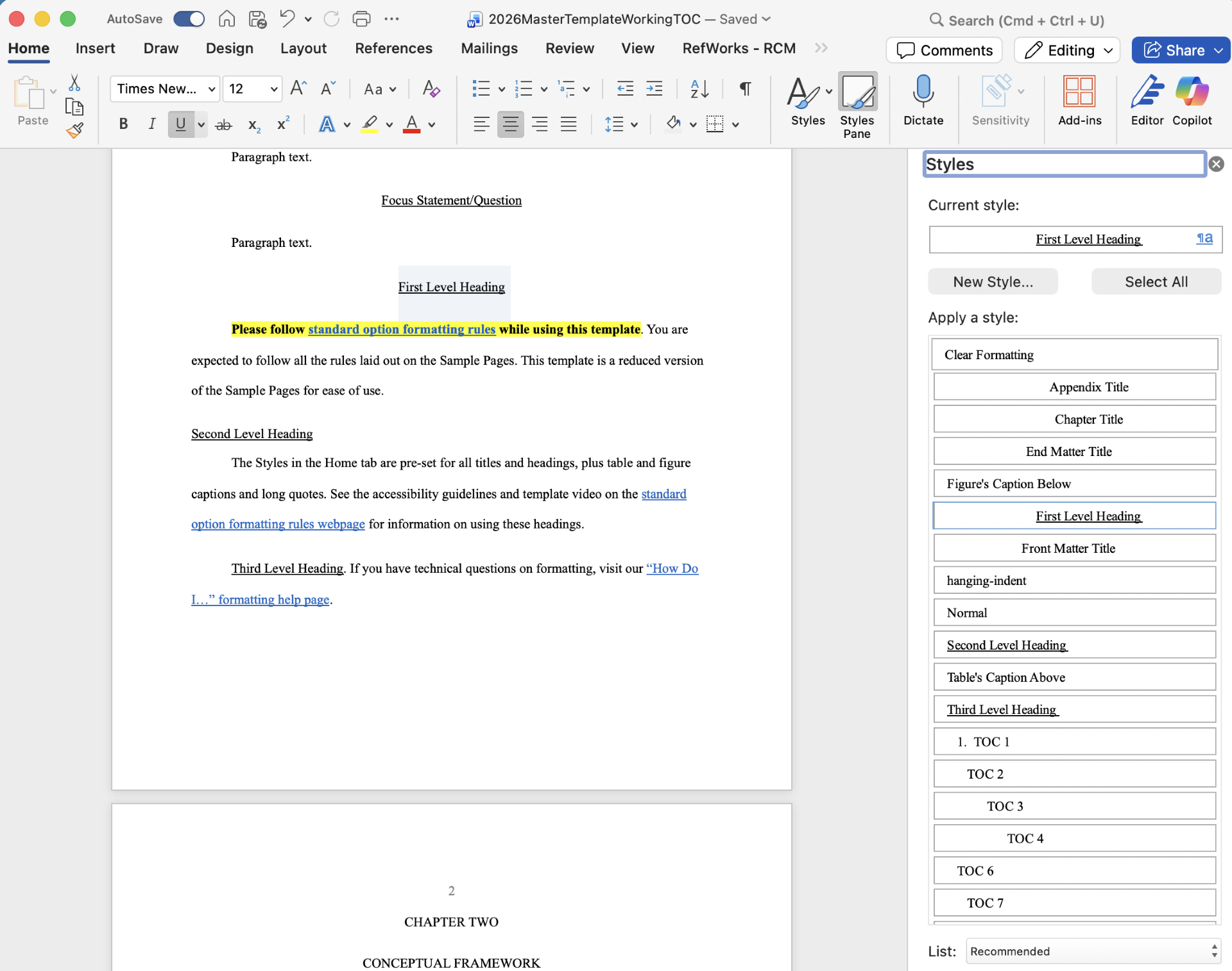
- From the styles menu, select the "First Level Heading" style for your first level headings, "Figure's Caption Below" style for captions below your figures, etc.
- Using preformatted styles automatically creates the correct spacing for you.
- Do not manually create your own headings/captions. This will cause issues as you later edit your paper. Please use the preformatted style options.
If you need to remove any style formatting, select the "Clear All" or "Clear Formatting" option within the same Styles menu.
- Occassionally, a style you assign to a heading or caption will be incorrectly applied to the paragraph text that follows. Selecting that paragraph text and clearing the formatting is how you would fix that.
When copying text from another document into an MSSE master template, always use the “Keep Text Only” paste option.
-
PC: Copy with Ctrl + C and paste with Ctrl + V. After pasting, click the clipboard icon and select “Keep Text Only”
-
Mac: Copy with Command + C and paste with Command + V. After pasting, click the clipboard icon and choose “Keep Text Only”
Using any other paste option may override the template’s formatting and cause automated features to stop working.
Exception: Figures and tables should be copied and pasted separately from surrounding text using the “Keep Source Formatting” paste option. You can also insert your original table/figure files into the document instead.
Important:
-
Do not paste over chapter titles or the very first heading below the chapter title. Use the existing title and very first heading below it that are provided in the master template.
-
You may adjust the wording of the very first heading if needed
After pasting your text, apply the appropriate styles, spacing, and other formatting as required.
Here are videos (the first made on a PC and the second made with a Mac) that outline this process. Please watch both videos.
Formatting Checklist
|
||
Title page |
||
|
Checklist:
|
||
Copyright Page |
||
|
Checklist:
|
||
Dedication, Acknowledgement, and VITA and/or American Indian Heritage Pages |
||
|
You can include:
Checklist for each of these pages:
|
List of Tables |
|
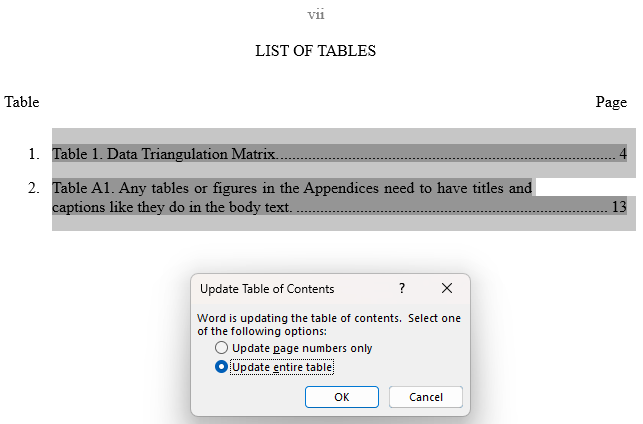
In the MSSE Master Template, the List of Tables is also automatic. Because of this, you will do the following:
Use the List of Tables as a quick way to verify your formatting—what appears (or does not appear) often indicates whether styles have been applied correctly
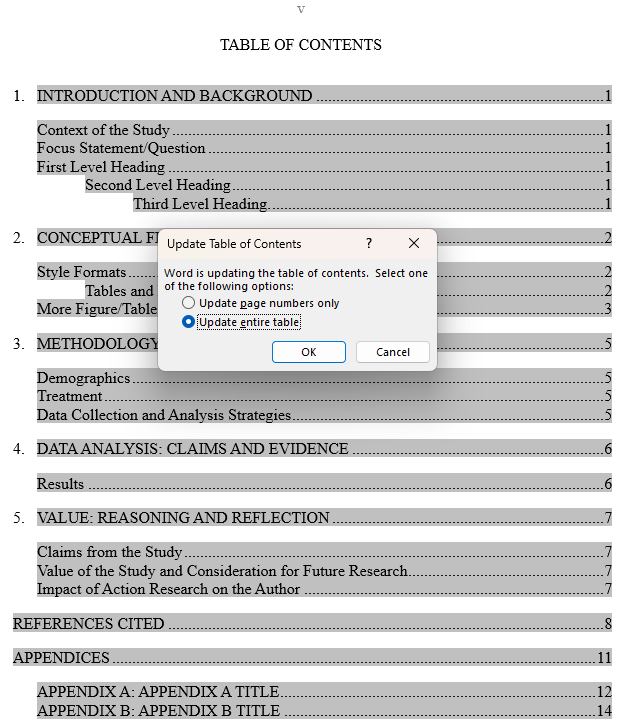
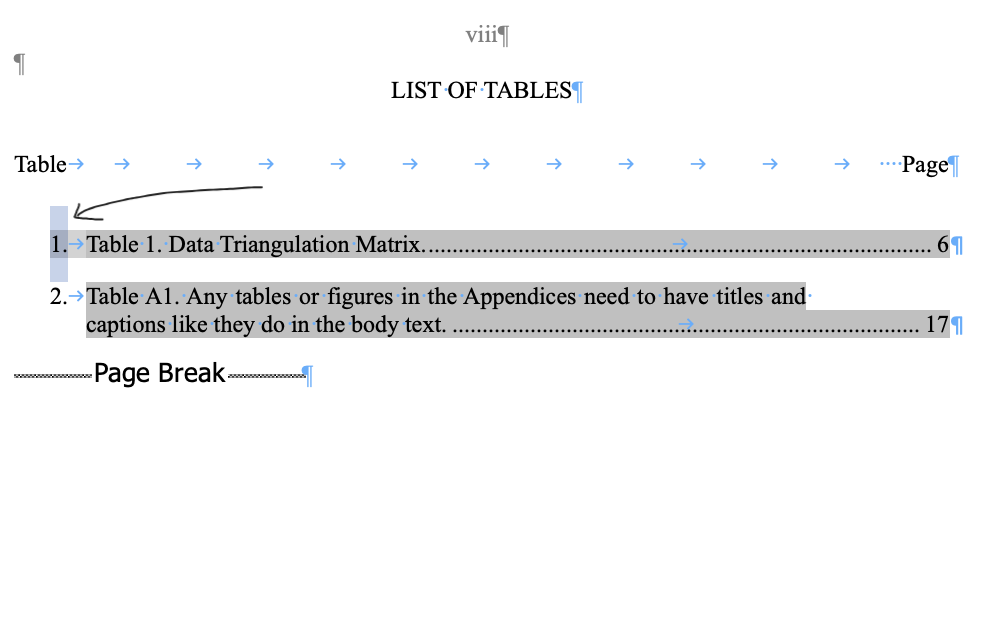
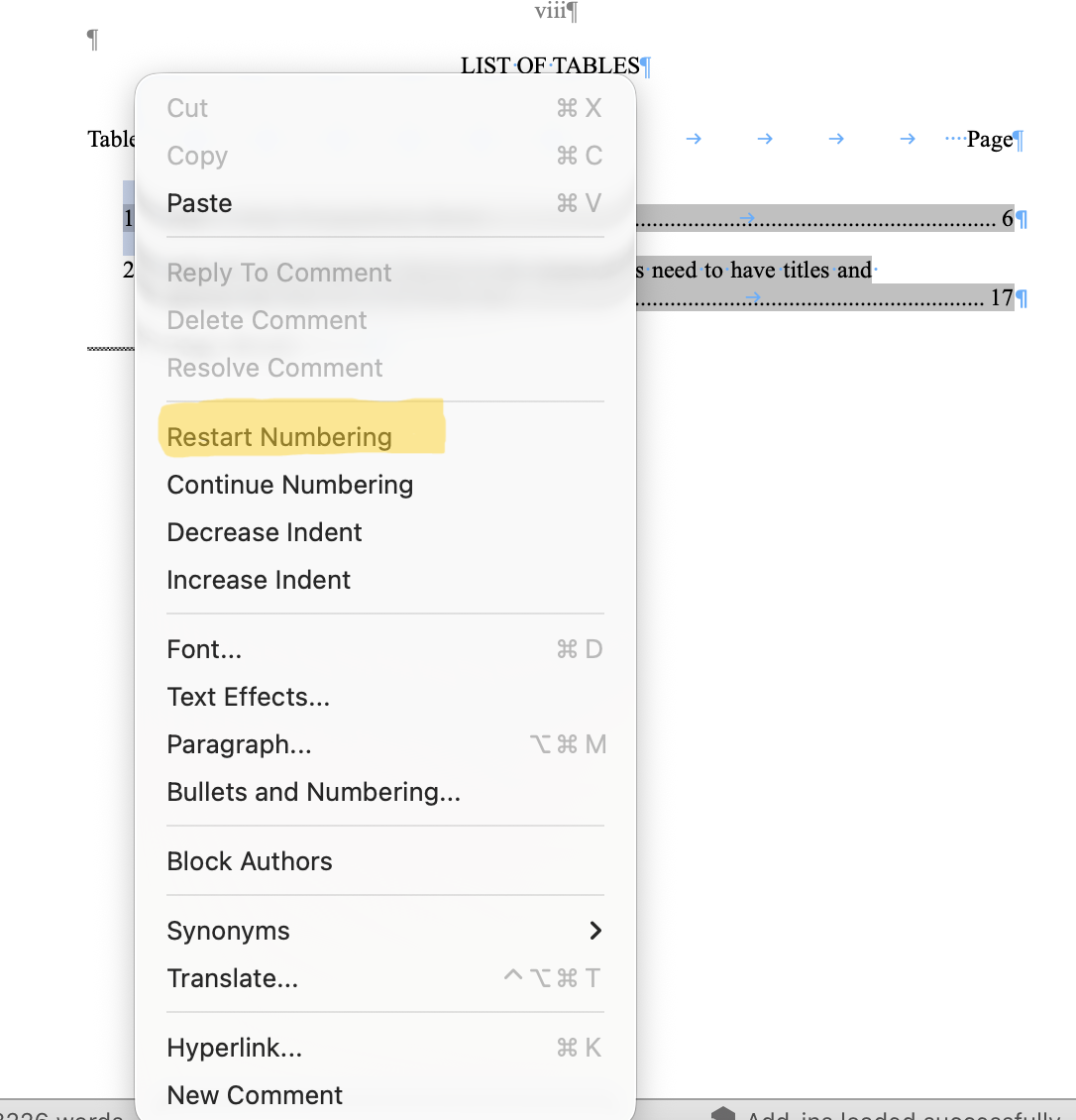
Important: Sometimes, the table numbers at the left of your List of Tables will become incorrect after an update and start at a number other than 1. To reset these numbers, do the following: On a PC:
On a Mac:
Screenshots of this process:
|
List of Figures |
|
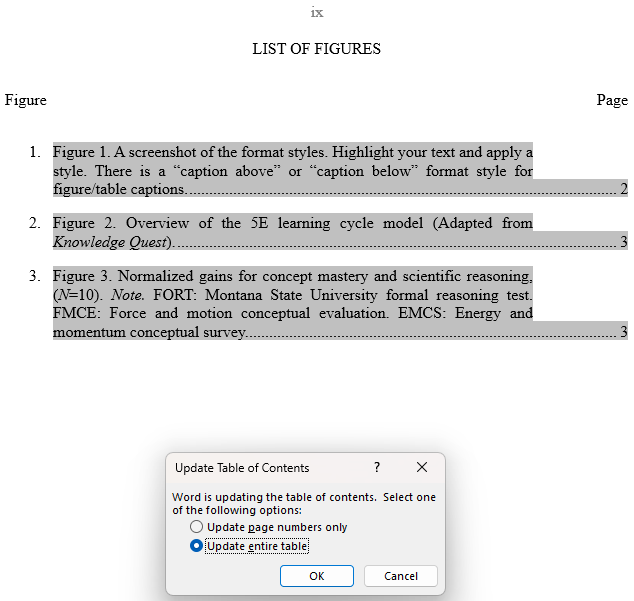
In the MSSE Master Template, the List of Figures is also automatic. Because of this, you will do the following:
Important: Sometimes, the numbers at the left in your List of Figures will be incorrect after an update and start at a number other than 1. To reset these, follow the same steps as given for this issue in the List of Tables section above.
|
Glossary or Nomenclature |
|
Checklist:
|
Abstract |
|
Checklist:
|
Roman Numeral Troubleshooting |
|
In the process of editing the front matter of their papers, some students have found that their Roman Numeral numbering becomes corrupted. If all of your pages display "ii" at the top, please reference this section for assistance. To fix this issue you will need to do the following:
Below is a video outlining this entire process: Note: the above video has no audio. |
Chapters |
|
Note: You’ll want to reference the MSSE Capstone Paper Outlines below as you build this section. Chapters will be different depending on the project type you choose. Checklist:
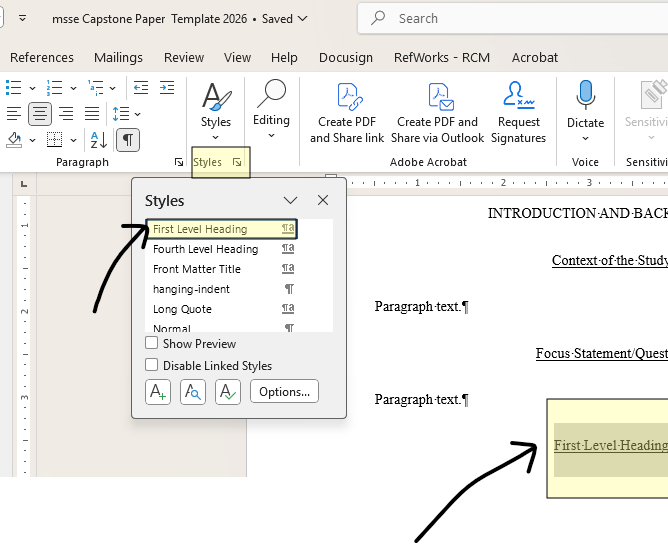
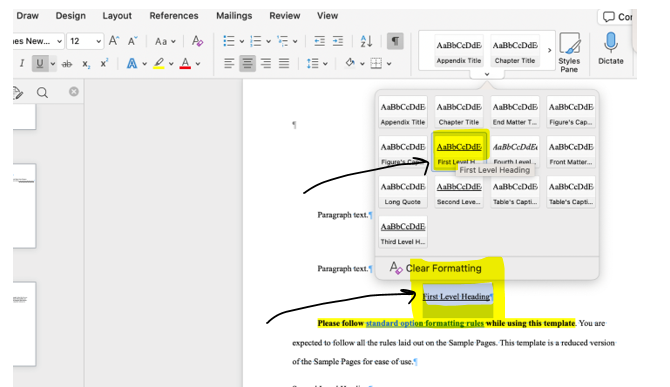
For each of your first level headings, use the "First Level Heading" style option.
Screenshot of what this looks like on a PC computer:
Screenshot of what this looks like on a Mac computer:
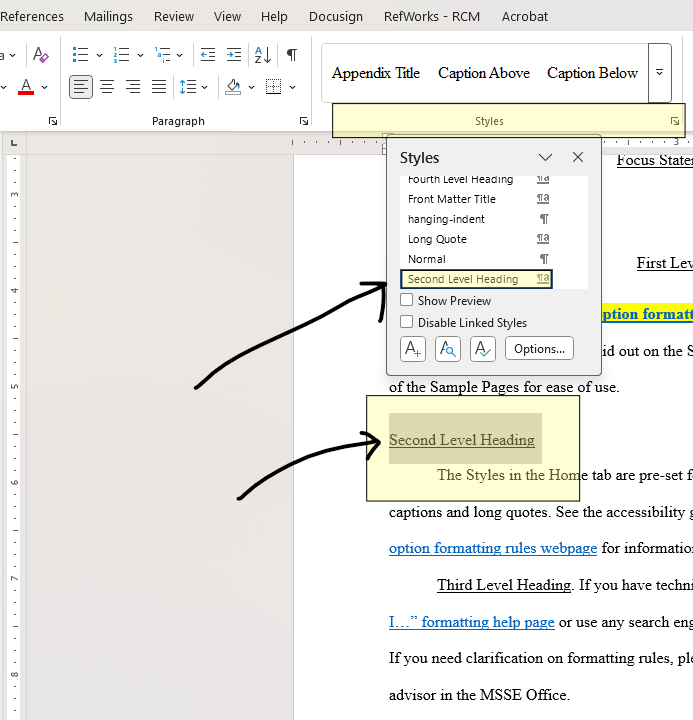
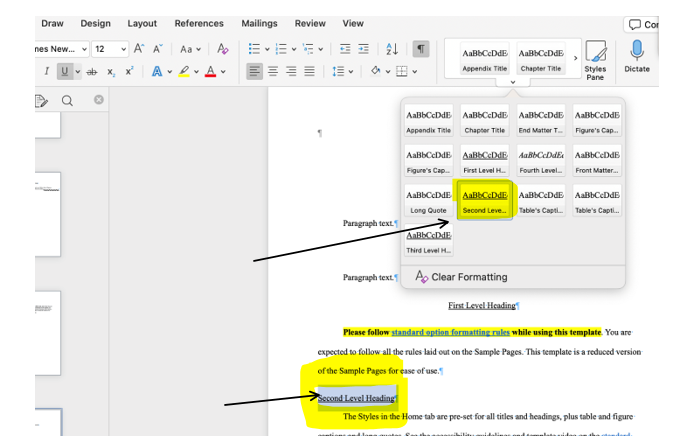
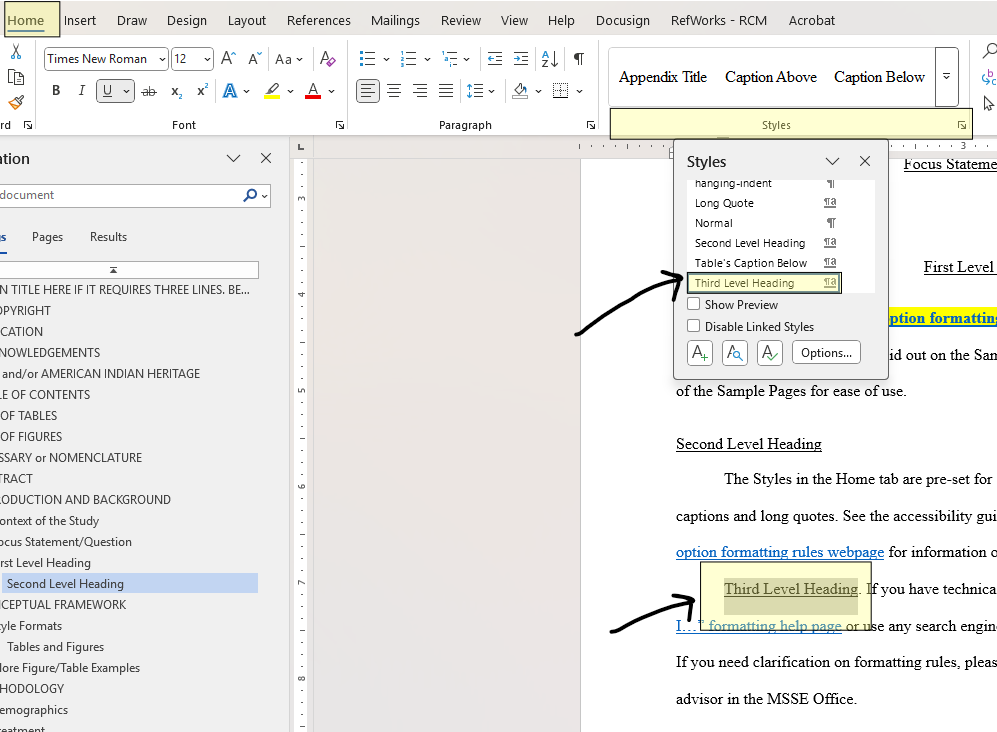
For each of your second level headings, use the "Second Level Heading" style option.
Screenshot of what this looks like on a PC computer:
Screenshot of what this looks like on a Mac computer:
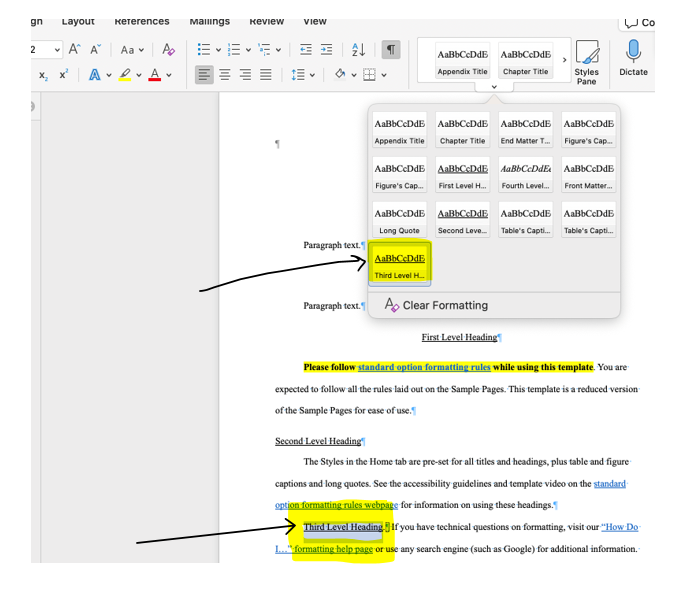
If you have third level headings, use the "Third Level Heading" style option.
Screenshot of what this looks like on a PC computer:
Screenshot of what this looks like on a Mac computer:
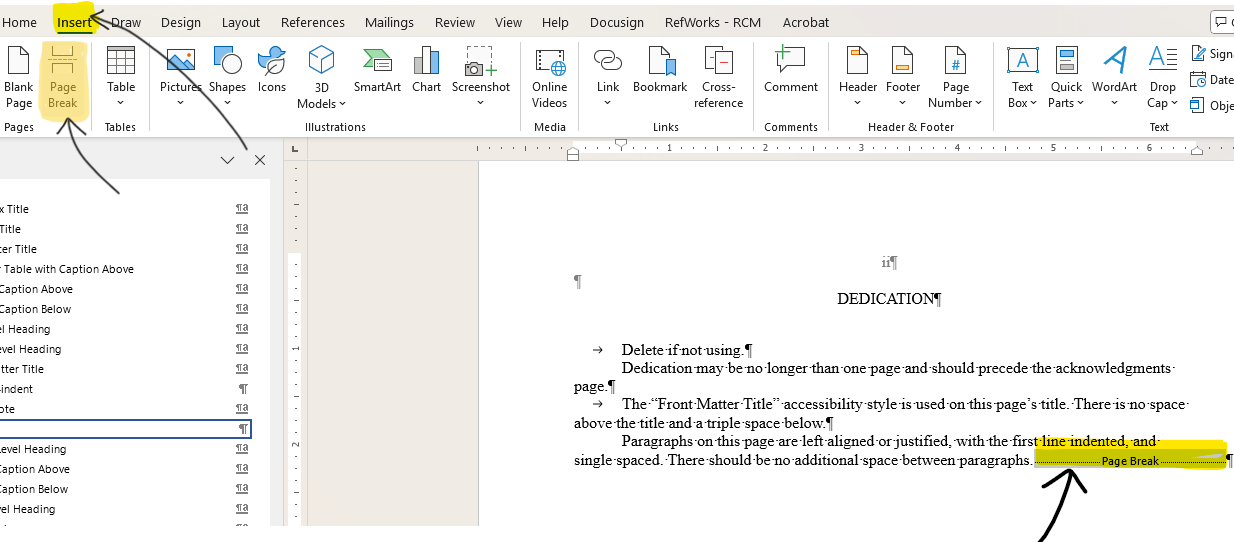
The chapters of your paper start your use of Arabic numbers (1, 2, 3…).
Screenshot of what this looks like on a PC computer:
Screenshot of what this looks like on a Mac computer:
Note: Headings should not sit at the bottom of a page without any text below them. Move headings to the next page if text does not fit underneath. |
MSSE Capstone Paper Outlines |
Action Research Paper Chapter Outline |
|
Science Research Paper Chapter Outline |
|
Educational Scholarship Paper Chapter Outline |
|
Journal Article Chapter Outline |
|
Block Quotes |
|
Direct quotes of four lines or more must be single-spaced and “blocked.” This means the text is indented on both sides and is justified. To do this, follow these steps:
|
Figure Captions |
|
Sample Size:
Note: N and n are always itallicized. Checklist:
|
Table Captions |
|
Sample Size:
Note: N and n are always itallicized. Checklist:
|
References Cited |
|
Resources:
Checklist:
|

Appendices |
||
|
Checklist:
Note: Within your paper, all appendices must appear in the correct alphabetical order.
If you have only one appendix, formatting rules are slightly different. See the MSSE master template for further details. |
||
Narrative and Parenthetical In-Text Citations |
||
|
APA 7 Resources to help in this section:
In-text citations can be naturally integrated into a sentence or placed in parenthesis. In the first case, they are referred to as narrative in-text citations. In the second, they are called parenthetical in-text citations.
Examples of In-text Citations:
|
||
Abbreviations |
||
|
Checklist:
|
||
Accessibility Check |
||
|
Resources:
Checklist:
|
||
Focus Question/Focus Statement |
||
For any comments or concerns about this page, please email MSSE program coordinator Pilar Martland at pilar.martland@montana.edu. |
edit