
New! OLLI at MSU Registration Instructions
Follow these steps to create your OLLI account, purchase a membership, browse programs, and complete registration.
Create Your OLLI Account
Go to learn.montana.edu and click the Login button at the top right of the screen.

Click Create Account and complete the account creation form.
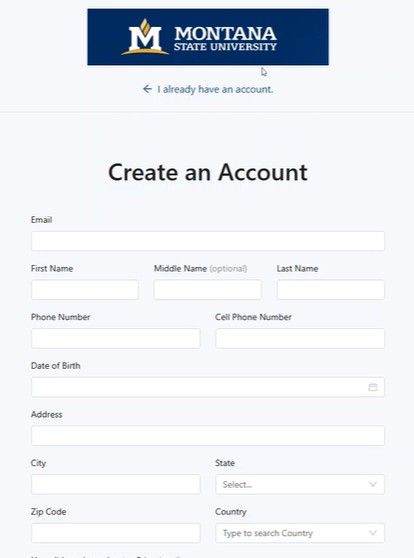
Enter your account information:
- Email address
- First and last name
- Phone number
- Cell phone number, which can be the same as your regular phone number
- Date of birth
- Address, state, and country
Answer the optional question about how you heard about OLLI. Then select OLLI as your area of interest.
Note: please select your state and country using the form's dropdown menu, not your browser's autofill suggestions
Some web browsers show a small list of suggestions as you start typing. (This is called autofill). This list can look similar to the dropdown on our form, but it will not work in this form.
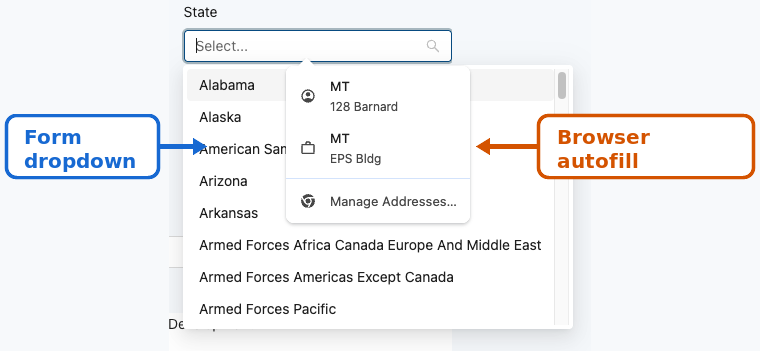
How to tell them apart:
The form's dropdown appears only after you click directly on the box, and the list is contained within the page itself. Browser autofill may appear as soon as you click into the box, often with a highlighted or shaded background, and may include a small icon (like a key, a browser logo, or your saved address).
What to do:
- Click on the box.
- If a suggestion list appears from your browser, ignore it. Don't click on it.
- Look for the list that comes from our website. It usually appears directly attached to the box, without any icons or shading.
- Click your answer from that list.
Tip: If you accidentally selected the wrong option, just click the box again and try selecting from our website's list.
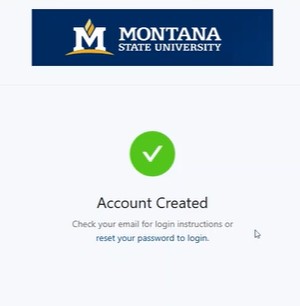
Submit the form. You should see a message telling you to check your email for login instructions.
Set Your Password and Sign In
Open the account creation email and click Create your password.
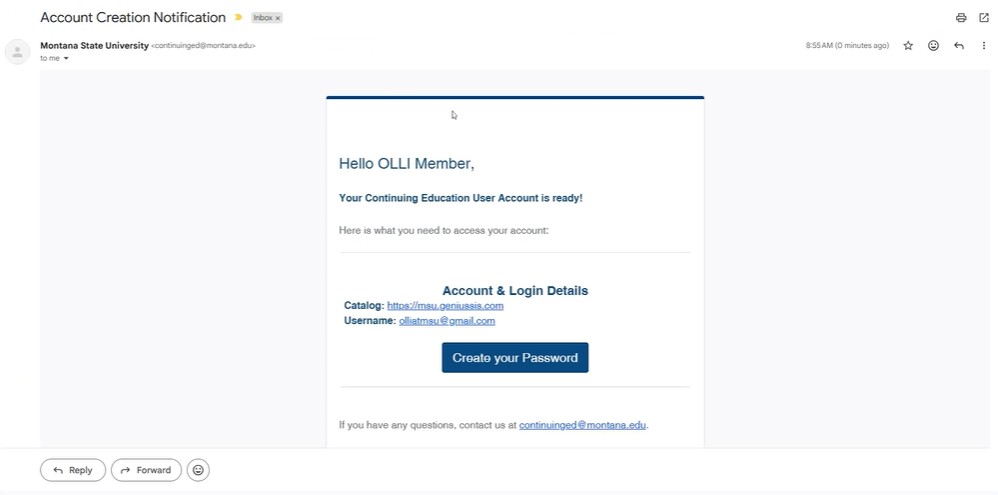
Enter and confirm your new password, then click Reset password.

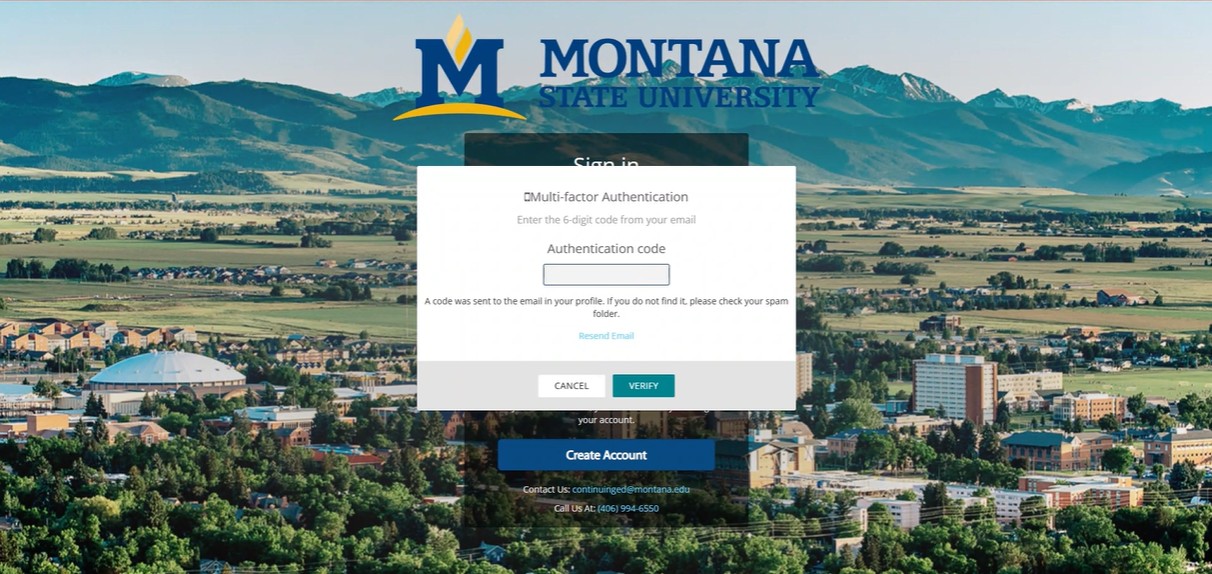
After your password is created, sign in with your email and password.

Check your email for the authentication code, then copy or type it into the login screen.
Use Your Dashboard
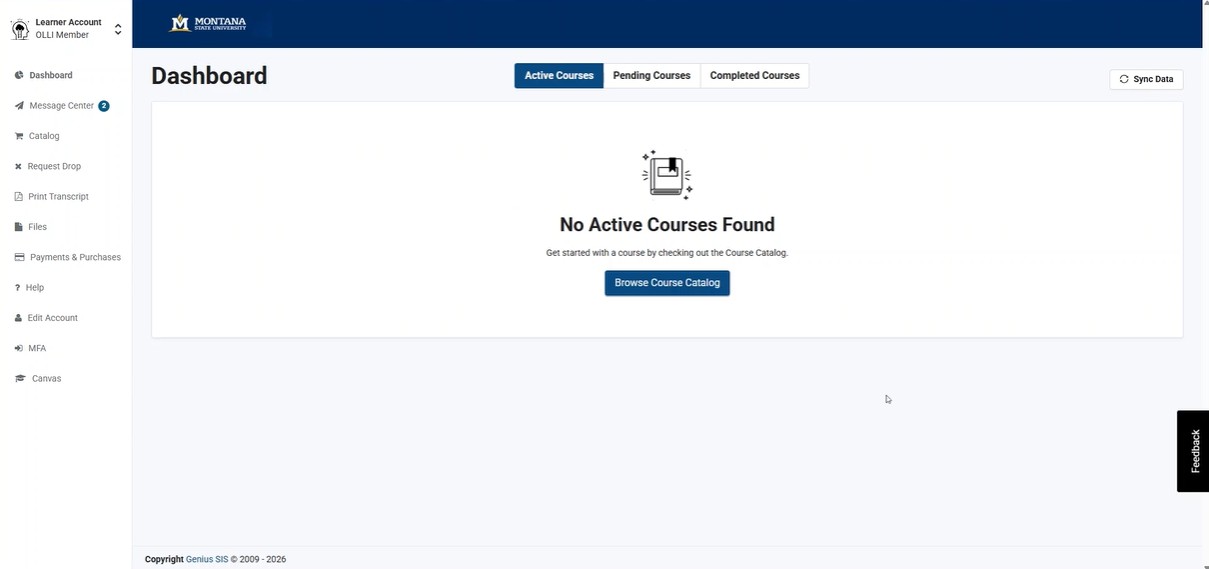
After signing in, you will arrive at your dashboard. From here you can view current courses, messages, drop requests, and payments or purchases.
Purchase Your Membership
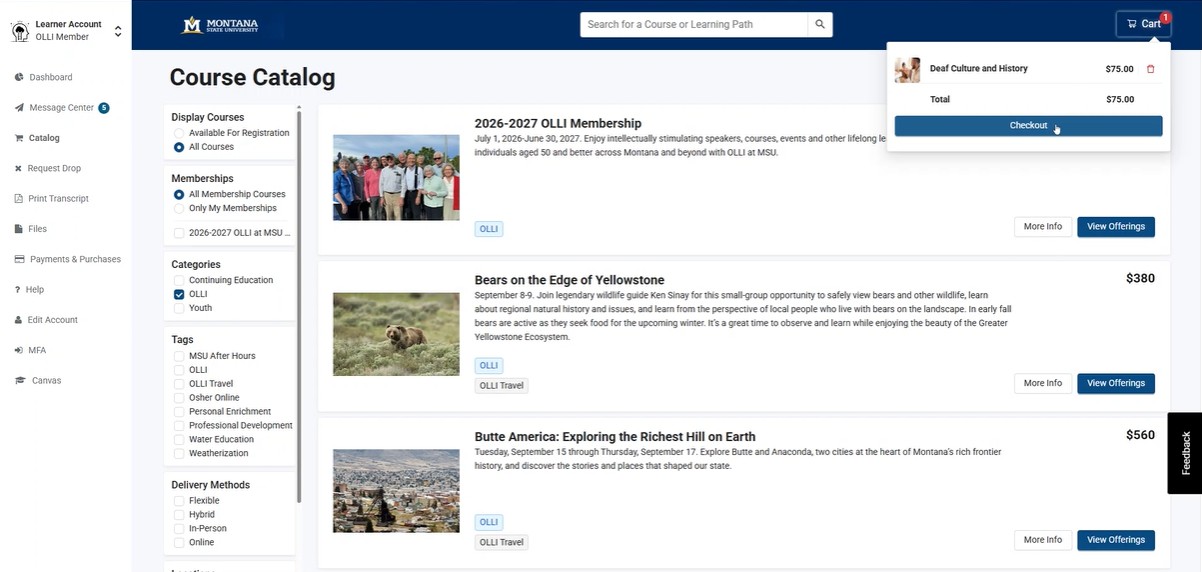
Return to the catalog and filter your results. Under Display Courses, select All Courses, and under Categories, filter by OLLI.
Select the membership offering, then continue to the cart.
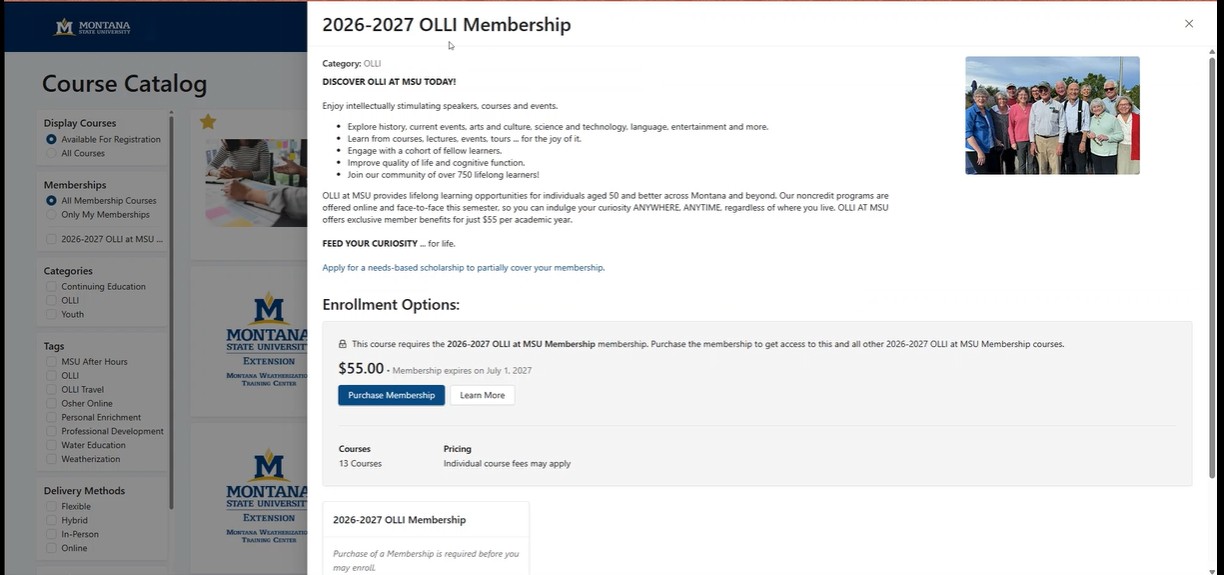
If payment options appear, select Pay via website.
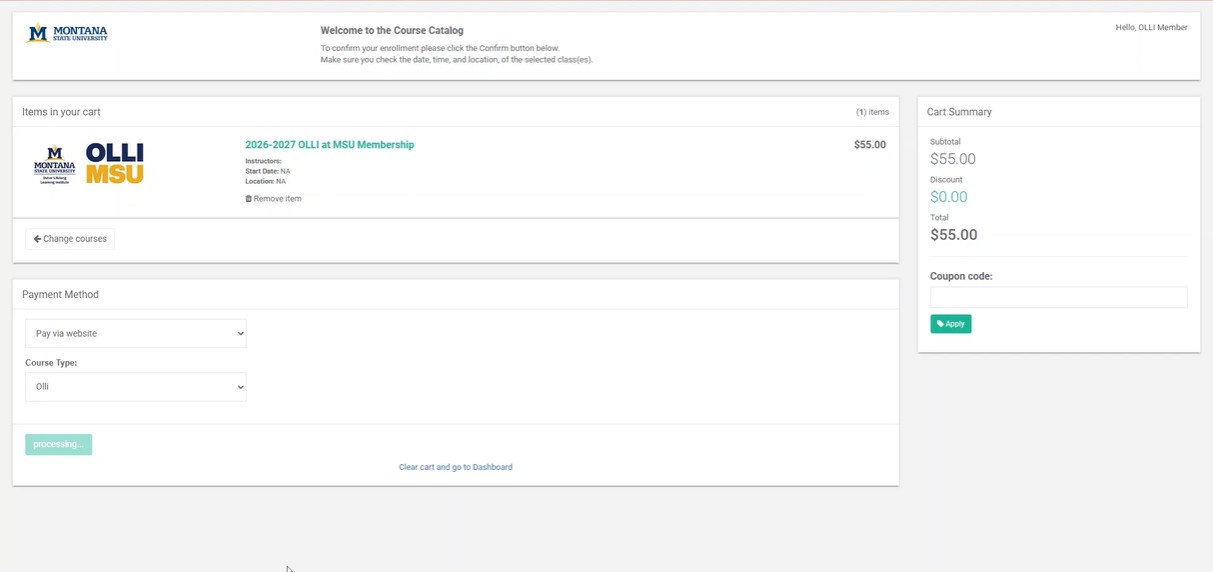
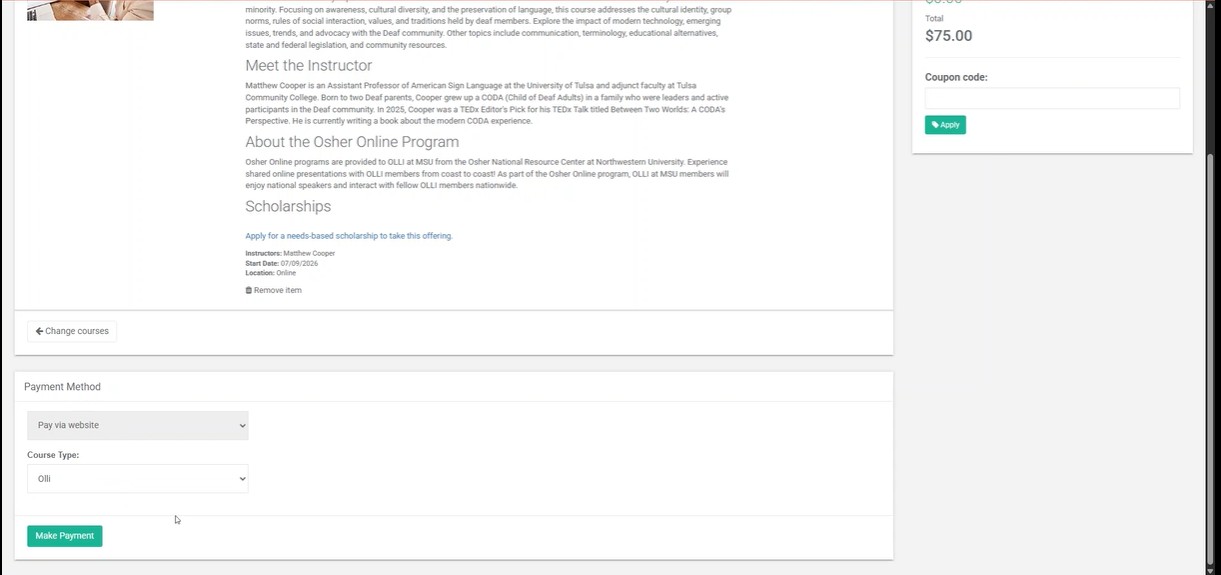
Choose OLLI as the course type if prompted.
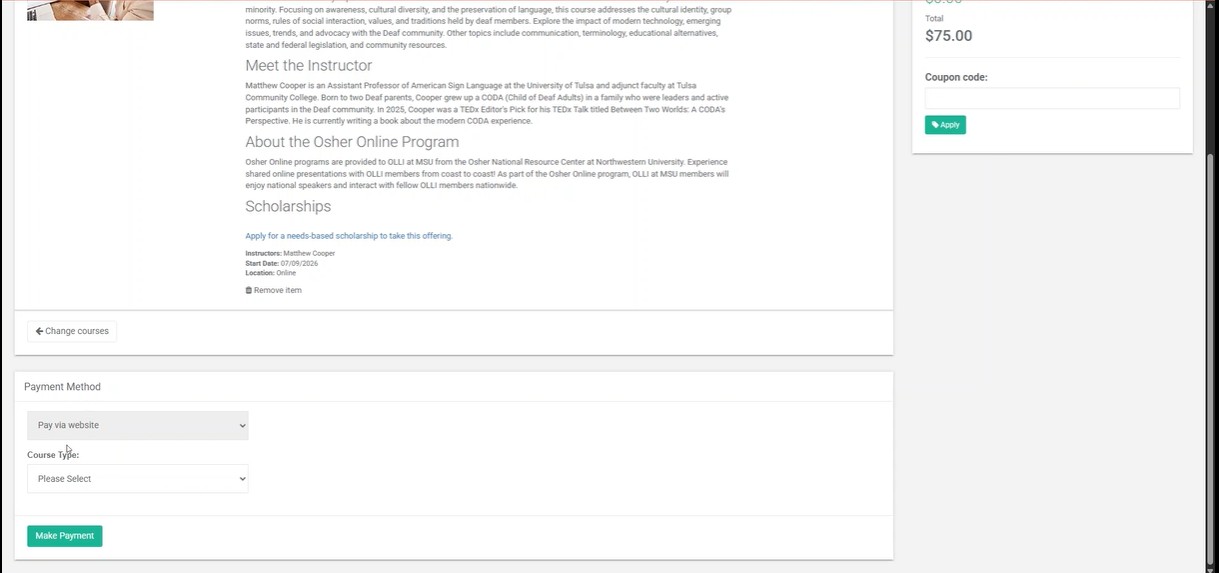
Confirm the payment type is selected, then continue.
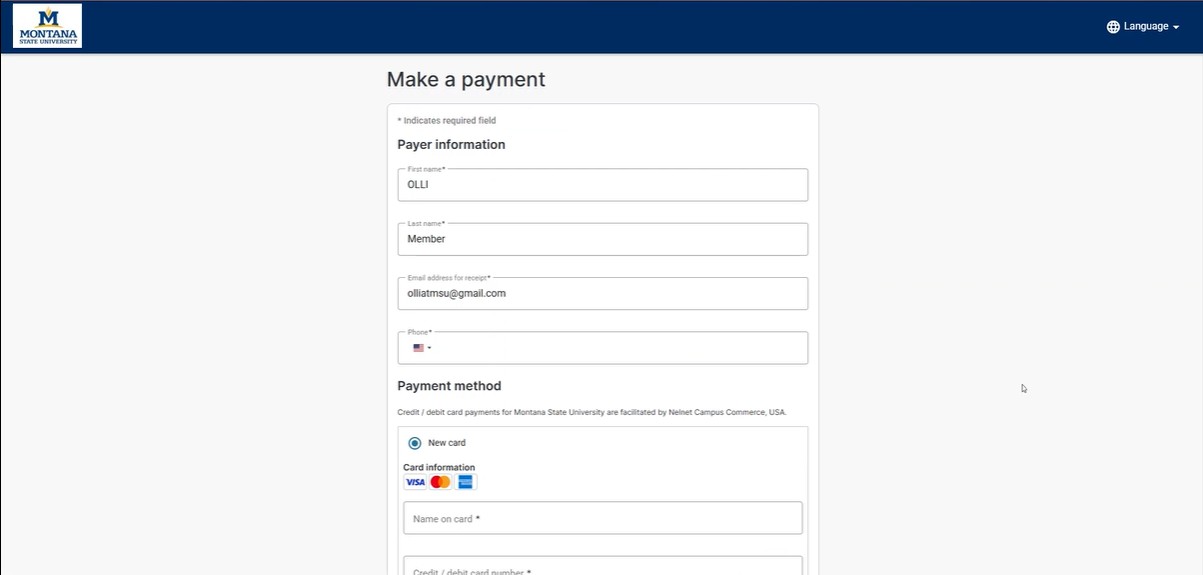
Complete payment in the payment portal.
Find and Register for Programs
Return to the catalog and filter your results using the left menu. Under Display Courses, select All Courses, and under Categories, select OLLI.
Use the filters in the left menu such as Tags for OLLI Courses, Speaker Series or other program types, or Delivery Methods such as In-Person or Online. This will refine your results further.
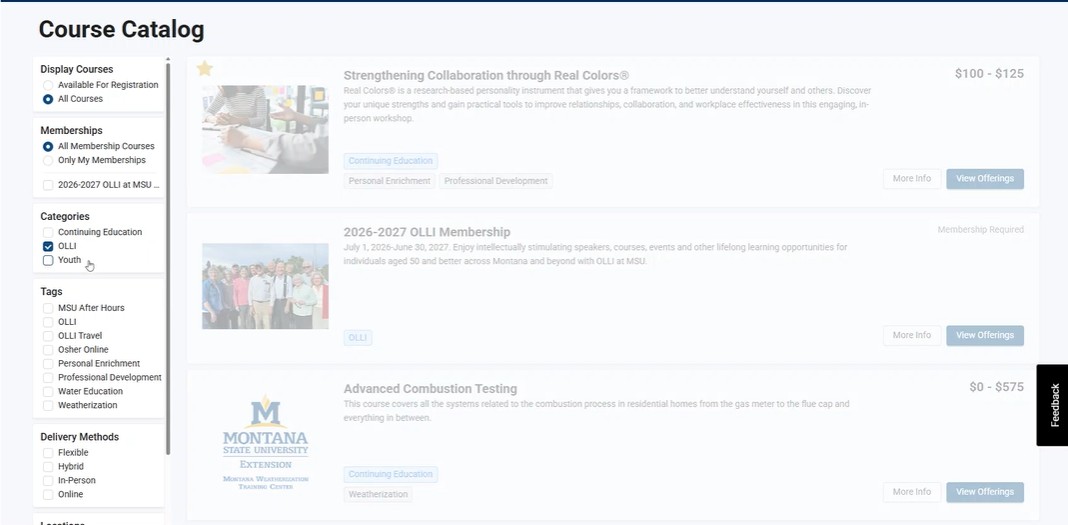
Click More Info to review a program, or click View Offerings to go directly to registration.
On the program page, confirm that your current membership is recognized. Look for the green membership flag. If you do not see the green membership flag after purchasing your menu, you may need to log in.
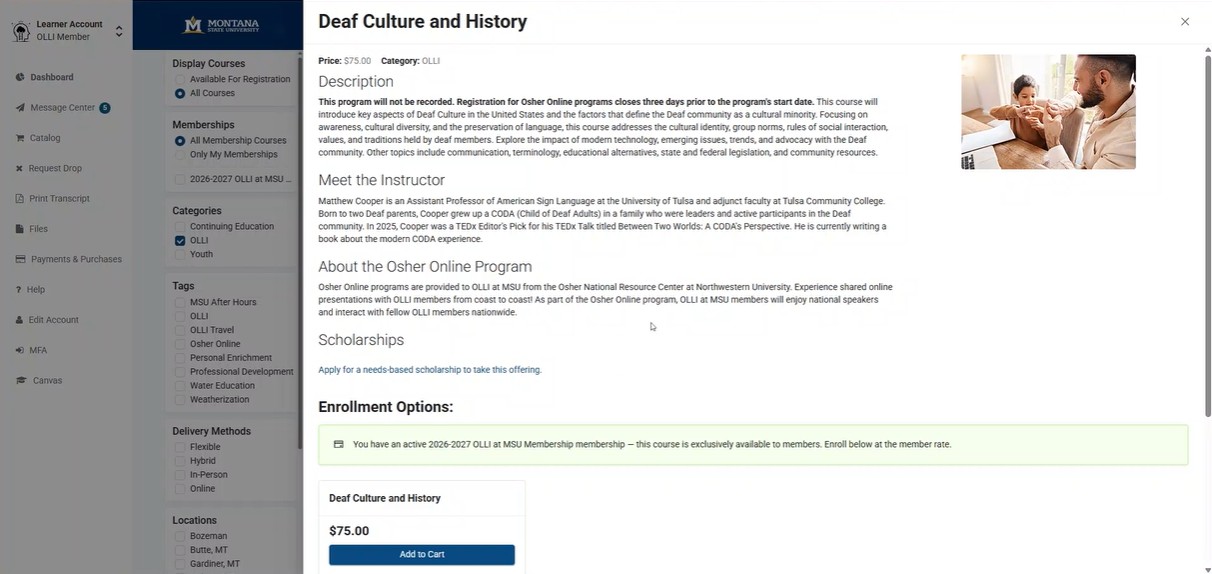
Click Add to Cart for the program you want.
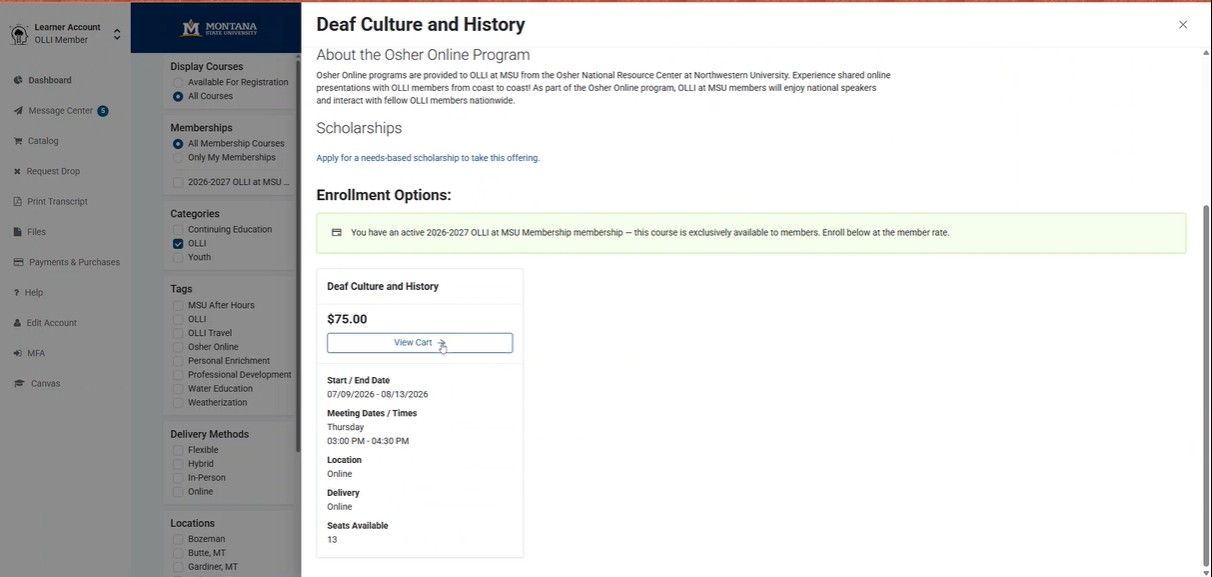
Continue browsing if you want to add more programs, or click the cart in the upper right corner of the screen when ready.
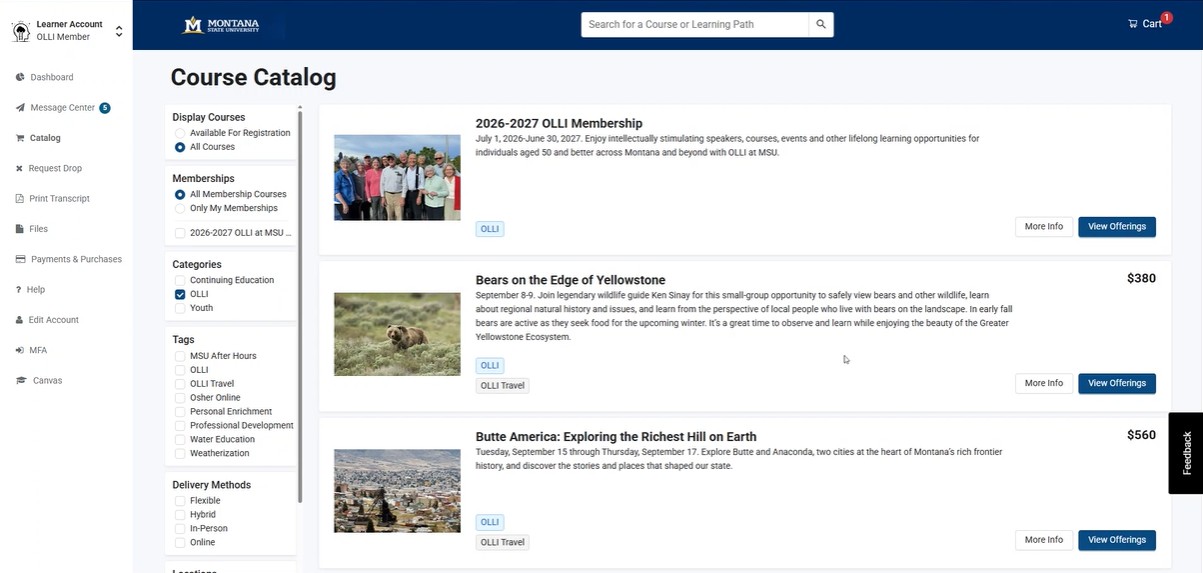
In the cart, click Checkout.
Complete the checkout and payment process.
When registration is complete, you should see a success message.