

Digital Accessibility at Montana State University
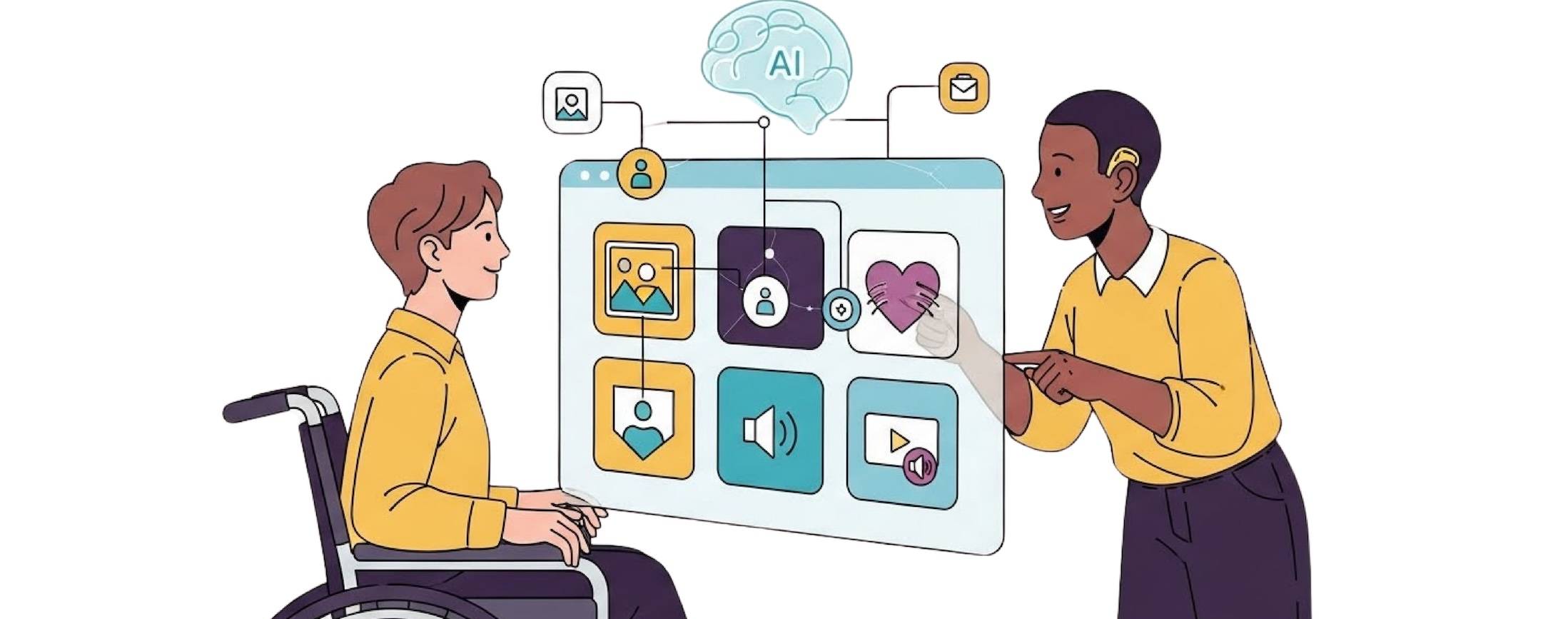
All online content must be accessible
New federal regulations require that all digital materials be accessible, including course materials, web pages, PDFs, videos, and other online resources. Montana State University is committed to providing digital content that is accessible to everyone.
- Digital content created or used after April 24, 2025, needs to be accessible.
- Older content needs to be made accessible only by request.
Where do we start?
Faculty and staff should begin updating their online content, including course materials in Canvas and web pages in the CMS, to meet these new accessibility requirements.
Start updating your most frequently used content first using the Digital Accessibility Rule of 5 (instructions below).
Why Accessibility Matters


The Digital Accessibility Rule of 5
These five practices help address the most common accessibility barriers.
Summary:
Provide a brief description of what the image conveys, given the context. What would you tell someone, if they could not see the image?
What:
Alt Text is a brief written description of images that makes visual content accessible to people who use screen readers or cannot view images due to low vision, blindness, or another disability. Alt text also allows those whose images do not load to understand what the image is showing. Adding effective alt text ensures that all users can understand the meaning and purpose of your images, graphics, and charts—whether they’re navigating a website, document, or online course.
Why:
- Provides equitable access to visual content for users with disabilities
- Improves website usability and ensures compliance with current standards
- Enhances search engine optimization (SEO) by giving context to images
- If an image conveys important information, alt text is essential. If it’s purely decorative, it should be marked as such so screen readers can skip it.
How:
- Be concise: Most alt text should be under 125 characters.
- Be descriptive: Describe the essential content and function of the image.
- Avoid redundancy: Don’t say “Image of...” or “Picture of...” — screen readers already announce it's an image.
- Match the context: Tailor the description to what’s relevant for the page’s purpose.
- Full alt text guidelines from the Diagram Center.
Example:

The alt text for this image could be "male skier in midair"
Summary:
Ensure high color contrast, and do not use color alone to convey meaning.
What:
Color Contrast is the difference in color between text and the background. High contrast is essential for ensuring that digital content is readable by everyone, including people with low vision, color blindness, or other visual impairments.
Do not use color by itself to communicate meaning, or emphasis.
Why:
- Those with low vision or color blindness need good color contrast to see information
- Most people prefer good contrast because it's easier to read,
- People with colorblindness may miss certain information if only color is used to convey meaning, or emphasis.
- Good contrast between text and background improves clarity and reduces eye strain.
How:
- Provide high contrast between text and background (e.g., dark text with light background or vice versa, like black and white)
- Use a contrast checking tool:
- Good contrast between text and background improves clarity and reduces eye strain.
- Avoid using textured backgrounds when possible
- Use large text and simple fonts
- Don't use color as the only method of indicating headings
- Use bold instead of color for emphasis
Summary
Hyperlinked text should make sense on its own.
What
Descriptive links are essential for creating accessible digital content. Instead of vague phrases like “click here” or “read more,” descriptive links clearly indicate the purpose or destination of the link. This helps all users—especially those using screen readers—navigate and understand your content more effectively. Well-crafted links support a more inclusive and user-friendly experience for everyone
Why:
- Enhance accessibility for screen reader users
- Improve navigation efficiency to save time and reduce frustration
- Boost scannability for all users, making it easier to understand and use
- Reduce cognitive load by reducing the mental effort and making your content more straightforward
How
- Select the text you want to hyperlink > right click > insert link > paste in the URL link address
- Be informative and self-contained: the link text itself should clearly describe the content or action of the linked resource
- Avoid "Click Here" and other generic phrases like "Read More”, etc.
Example:
- Good example: "Learn about our services on our website"
- Bad example: "To learn about our services on our website, click here (bad example)"
Summary
Organize pages and documents using built-in heading styles, bullet lists, and numbered lists to support navigation by assistive technologies.
What
Headings offer additional information about the structure of a document on a code level. These help users navigate content more efficiently.
Numbered Lists and Bullets help group similar content together. Numbered Lists indicate a specific sequence, ranking, or priority, while bullets do not.
Why:
- Help users get an overview of content before reading
- Provide structure & scan for important content
- Jump to a particular section
- Break reading into manageable chunks
- Easily refer back to a section when reviewing or studying
How:
- Headings can be applied to nearly all electronic content including Word documents, the web, and Canvas courses.
- Select the text you want to use as a heading, and then select the heading style (usually in the top ribbon, near the other text formatting options). Web's CMS headings instructions also apply to Canvas.
- Nest headings in a hierarchy:
- Heading 1 (e.g. Book Title)
- Heading 2 (e.g. Chapter One)
- Heading 2 (e.g. Chapter Two)
- Heading 3 (e.g. sub-chapter)
- Heading 4 (e.g. sub-section)
- Heading 3 (e.g. sub-chapter)
- Heading 2 (e.g. Chapter Three)
- Heading 1 (e.g. Book Title)
- Avoid using headings:
- just for visual appeal or emphasis
- in over-use. If no paragraph text is below a heading, it shouldn't be a heading.
Summary:
Videos must include accurate closed captions. Panopto can be used to auto-generate captions for video content, that you can just edit for accuracy.
What:
Captions are synchronous text versions of the spoken word presented within a video or other multimedia.
Why:
- Captions offer an alternative to audio, and they help make video content inclusive and understandable for users, including:
- Noisy, quiet, distracting, etc.
- Deaf or hard of hearing
- Learning disabilities
- English as a second language
- Those who process information better visually
- Anyone watching in an environment that's not conducive to audio playbacks
- Enhances the experience for all learners
How:
- See instructions for adding captions to videos using Panopto.
- NOTE:, these auto-captions are not 100% accurate. You should manually edit auto-captions for accuracy. Wrong captions can be worse than no captions at all!
Summary:
Provide transcripts for all multimedia, audio, and video files.
What:
Transcripts are a separate, written document of the audio, and allow users to read the content with screen readers, etc. or search the transcript for a specific section.
if you are trying to search for a specific part in a video that describes something.
Video/audio Transcripts ensure that individuals who are deaf, hard of hearing, have auditory processing disorders, or prefer reading to listening can fully access your content. They also benefit all learners by enabling searchability, easier note-taking, and flexible engagement with course materials. Whenever you include multimedia, a clear and accurate transcript should be available alongside it.
Why:
Transcripts support users, including:
- Deaf and hard of hearing
- Learning disabilities
- English as a second language
- Those who process information better by reading
- Note-taking
- Searching for terms or specific sections
- Navigating to a specific point in a video
How:
- Create a transcript based on any available captions, if available (i.e., auto-generated captions).
- Transcripts do not have to be verbatim accounts of the spoken word in a video, and can be written before recording a video.
- Include descriptions, explanations, or comments that may be beneficial, such as indications of laughter or a car horn, which are helpful when someone reads the transcript alone without watching or listening to the video.
What:
Audio Descriptions are verbal narrations that describe important visual elements in videos, such as actions, settings, facial expressions, or on-screen text. They provide access for individuals who are blind or have low vision by filling in the visual information that is essential for understanding the content.
Why:
- Help for users, including:
- Looking away from the screen to write notes
- Seated in the back of a lecture hall
- Low vision, blindness, or another visual disability
- Visual/Auditory learners
- Students listening to content without video
- Allows for highlighting or further explanation of visual aspects of a video that might otherwise be misunderstood.
How:
- Start with a transcript based on any available captions (i.e., auto-generated captions) then add a narrative of the visual elements.
- Include descriptions, explanations, or comments that may be beneficial, such as indications of laughter or a car horn, which are helpful when someone reads the transcript alone without watching or listening to the video.
- Read through the transcript to eliminate any errors or potentially confusing bits.
- Ensure that the transcript is offered to learners in an accessible format.
Pro Tips:
If possible, convert PDFs to web pages, a page in Canvas, Word documents, etc. If you do use PDFs, they must contain selectable text and be readable by screen readers. Any handwritten or scanned materials should be converted to text-based formats.
Most platforms have built-in accessibility checkers, including Canvas, Word, PowerPoint, and AdobePro for PDFs. Start by fixing major issues flagged by accessibility checkers, including the red indicators in Canvas and the CMS, which identify the highest impact accessibility issues.
Additional Guidelines for Specific Use Cases
What
Table Headers are essential for making digital content accessible to everyone, especially people who use screen readers or keyboard navigation. Proper use of heading levels (like Heading 1, Heading 2, etc.) creates a clear structure that allows users to understand and navigate content quickly.
Why:
- Ensure that screen readers know how to properly read tables. Users can navigate table cells and hear which column/row they're currently in.
- Allow visual users to keep track of where they are more easily (especially when a table continues across more than one page).
How:
- Use tables for data, not for layout
- Use only one header row and one header column per table
- Ensure each colum and row has a header
- Avoid blank cells
- Avoid merged cells
- Avoid title rows in the middle of a table - split the table if necessary
What:
Long Descriptions are detailed textual explanations of complex visual content such as charts, graphs, infographics, maps, and diagrams. They provide essential information that may not be conveyed through brief alt text alone, making content more accessible to individuals who are blind, have low vision, or use screen readers. Including long descriptions supports inclusive design and ensures that all users can access and understand the full meaning of visual materials.
Why:
- Provide comprehensive context for complex visuals. While alt text offers a concise summary, long descriptions are essential for conveying the full detail and meaning of complex images, charts, etc.
- Ensure equal access to information that would otherwise be inacccesible to those using screen readers.
- Enhance understanding for all users as they can clarify data points, trends, or relationships that aren't immediately obvious.
- Meet accessibility standards (WCAG) for non-text content, particularly complex visuals.
How:
- Formatting: the link text itself should clearly describe the content or action of the linked resource.
- Describe the image in the surrounding text: or link to an appendix where long description is provided (if page space is limited).
- Remember to: add alt text to images even when they have a long description. Alt text should be very short and connect the image to the description.
Example:
Alt text: "Graph A"
Long Description: "Graph A shows that usage increased by X% over a 5 year period."
Instructions & Resources
- Basic Accessibility Training (Required) - coming soon in Canvas
- Make PDFs accessible in Adobe Pro
- TIP: start by making the original document accessible in Word, PowerPoint, etc. and use their accessibility checkers before converting to PDF
- Make Word Documents Accessible
- Make PowerPoint Presentations Accessible
- Add Captions & Transcripts to Video and Audio using Panopto
- Canvas
- Fix Canvas accessibility issues using YuJa (built in accessibility tool)
- Create accessible web pages in the CMS
-
Social media Accessibility (coming soon)
-
Handwritten notes (coming soon)
- Accessibility technologies and tools used at MSU:
- Equatio
- Read & Write
- Orbit Notes (coming soon)
- Neurodiversity Teaching Guide, by the MSU Library
- Universal Design for Learning (UDL) Best Practices
- Learn more about the core principles of the web content accessibility guidelines (WCAG)
Where can we ask for help?
Academic Technology and Outreach (ATO), the UIT Helpdesk, the Center for Faculty Excellence (CFE), the Office of Disability Services (ODS), and University Compliance have formed the Digital Accessibility Committee (DAC). We are working together to build resources and provide support for this work. Utilize the resources listed as much as you can, and reach out when you need assistance.
Email ATO at ecat@montana.edu for help using Canvas, Yuja and Panopto.
Email the CFE at cfe@montana.edu regarding the development of new course materials, and future training for excellent accessible teaching and learning.
Contact Web & Digital Communications for help using the CMS to make accessible content.
Email the UIT Helpdesk at helpdesk@montana.edu for technical support related to Microsoft Office and Adobe software, including installation and quick how-to help.
Request accommodations from the Office of Disability Services (ODS) for help with assistive listening devices, CART, and other disability-related accommodations.
Email University Compliance at compliance@montana.edu with compliance questions related to the applicable laws, including the Americans with Disabilities Act (ADA).
Learn more about Accessibility at Montana State University including physical accessibility, information for visitors, accommodations, and more.